Music Mini Player
The Music.app Mini Player is a handy, mouse-free way to control your music collection. From playing your favourite albums and rating them to letting Alfred surprise you with a random album, there's much fun to be had with the Mini Player.
The Music Mini Player is a Powerpack feature.
Page Index
Using the Music Mini Player
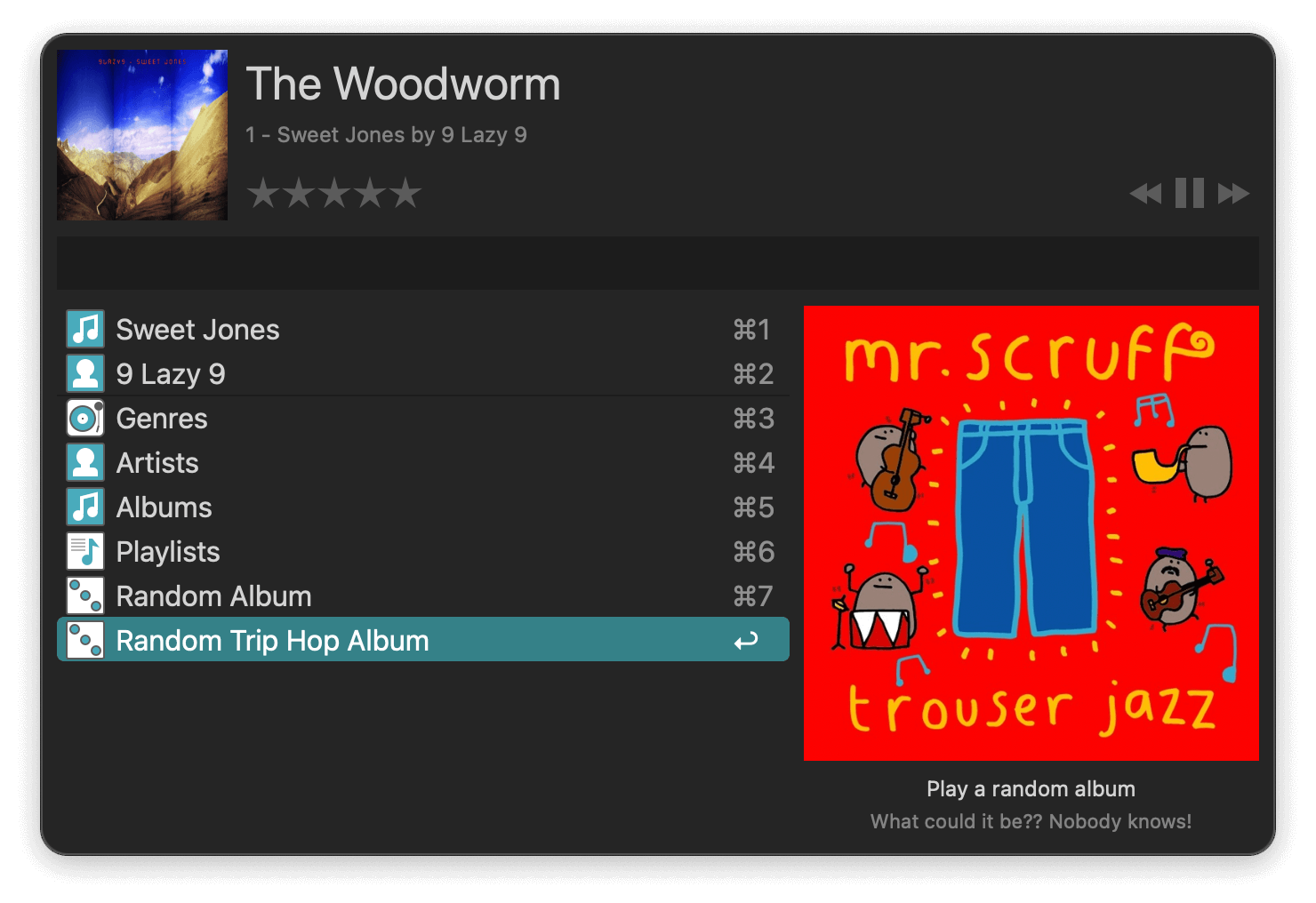
To launch the Music.app Mini Player, type music in Alfred (or use the ⌘⌥↩ default hotkey combination). Start typing the name of a song, album or artist, or navigate through the options underneath. You can browse your music collection using arrow keys or ⌘ + number.
Rating your music
You can rate your music collection, using stars and half stars. This rating will be visible in Music.app too. You can either use the mouse to set a star rating or press ⌘⌃ + a number from 1 to 5.
Refreshing your music collection
If you add new music to your Music.app collection, use the ⌘R hotkey combination to reindex your Music.app library. Alfred will then check for newly added music and add it to the Mini Player.
Alfred also automatically rebuilds his own database of your Music.app music when you update to a new Alfred release.
General Music.app Mini Player Preferences
You can change your Mini Player hotkey and keyword in the General preferences.
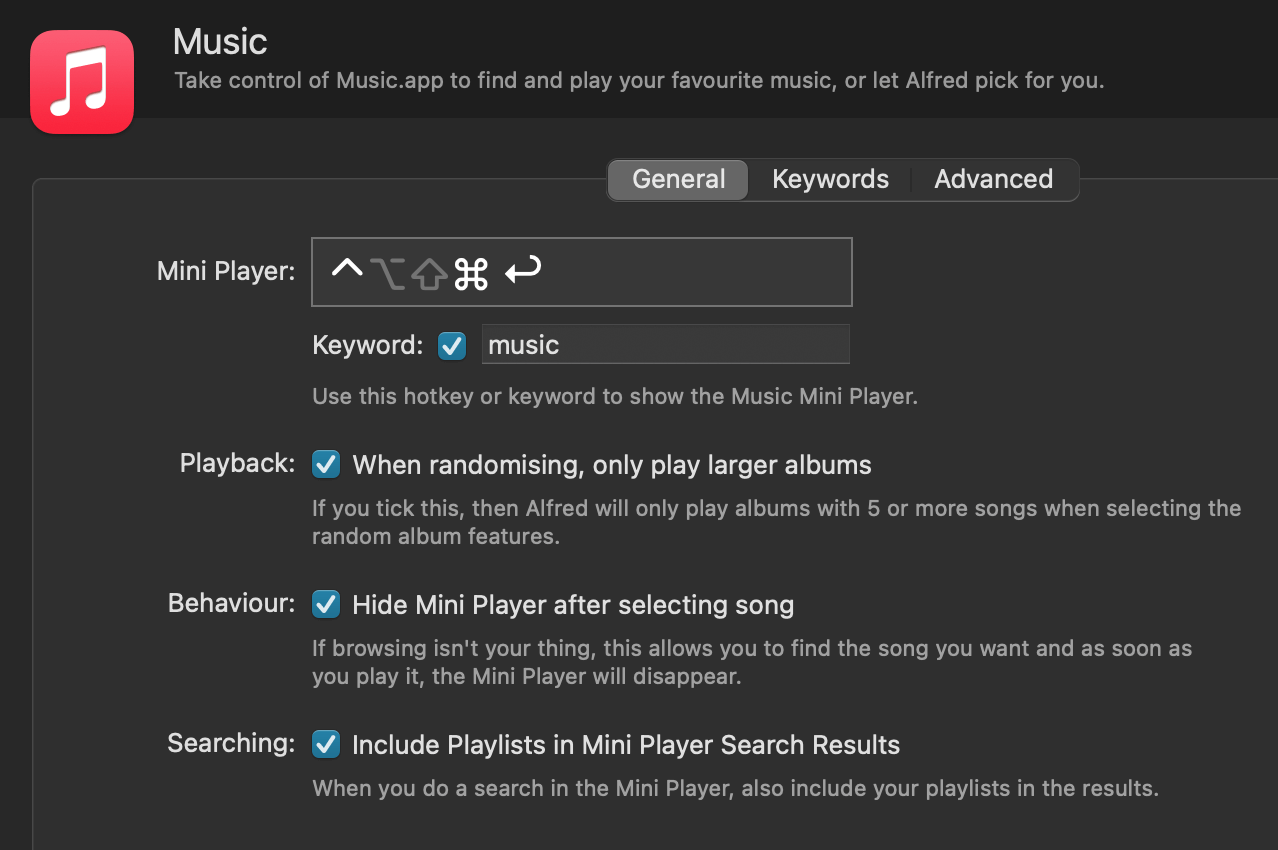
You can also enable or disable the following settings:
| Playback | When randomising, only play larger albums. |
| Behaviour | Hide Mini Player after selecting song. |
| Searching | Include Playlists in Mini Player Search Results. |
Music.app Mini Player Keywords and Hotkeys
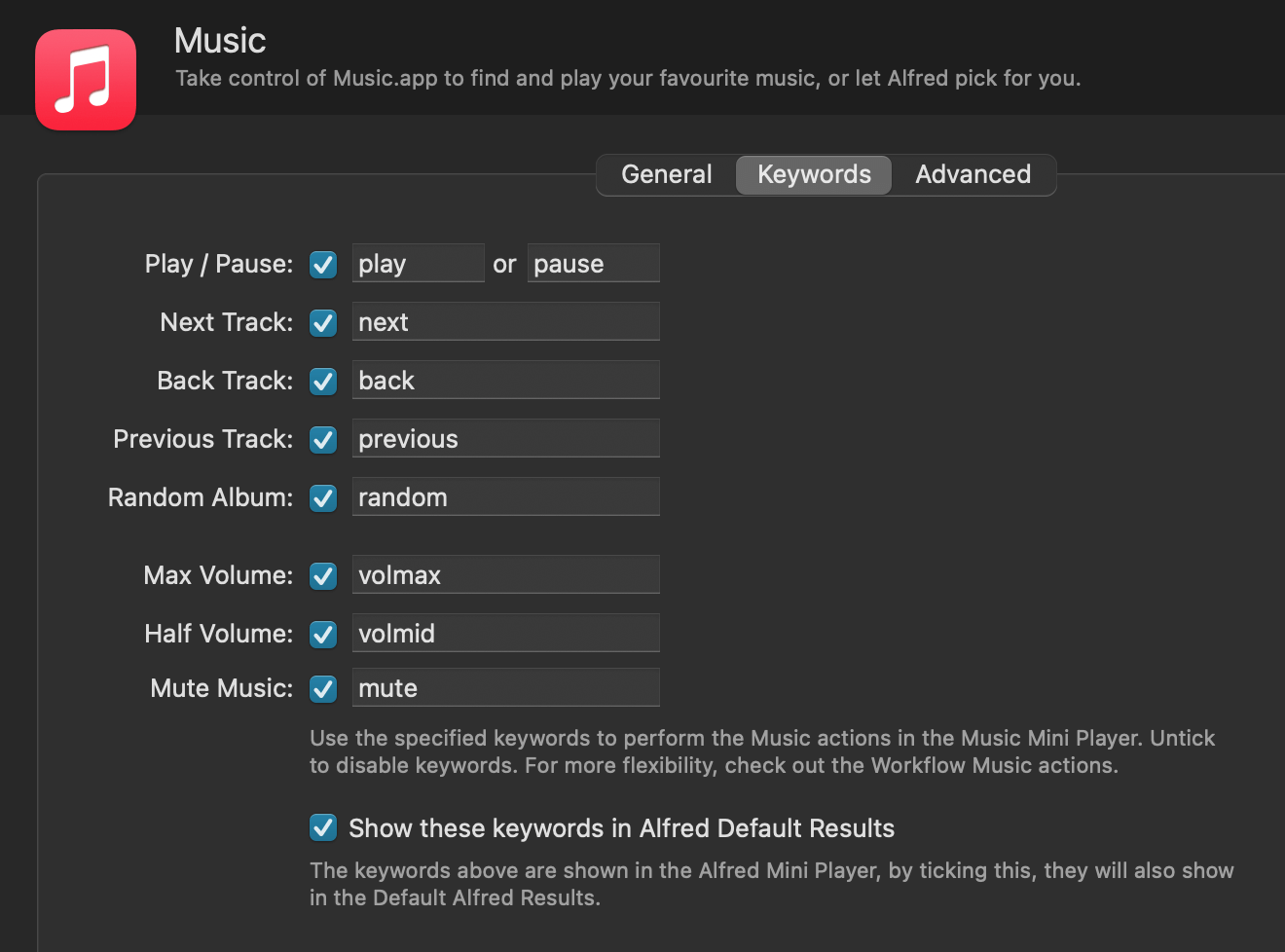
Under Alfred Preferences > Features > Music > Keywords, you can view, customise, and enable or disable the keywords used to control Music.app.
By default, these keywords are also shown in Alfred's default results, so typing random into Alfred's search box will start a new random album in Music.app, which is a fun way to start the day!
Below are the default hotkeys to browse your music while the Mini Player is active:
- ⌃⌘↓ Play / Pause
- ⌃⌘→ Next Track
- ⌃⌘← Back Track
- ⌃⌘↑ Play Random Album
- ⌃⌘[0-5] Rate currently playing song from 0 to 5 stars
- ⌫ Go up a folder in Music.app Mini Player
- ⌘R Reindex Music.app library
Want to control Music.app while the Mini Player isn't active? Take a look at the workflow actions to control Music.app.
Advanced Preferences
You can choose to include unticked Music.app tracks, podcasts, movies and TV shows in the Mini Player index.
If you've added music, the quickest way to update Alfred's database is to use ⌘R, but you can also press the Reset Music Library button here. Reset Artwork will refresh all album artwork cached by Alfred, which is useful if you've recently updated a lot of album art in Music.app.
The Predictability setting allows Alfred to create a playlist in Music.app to give a more predictable play order for an album.
Troubleshooting the Music.app Mini Player
DeprecatedThis relates to the older iTunes features.
If you're having trouble with the Mini Player and find that your songs are either not found, not playing or not in the expected order, take a look at the iTunes Mini Player troubleshooting page.