The "Unable to run task!" error message appears when using workflows
This error message appears when there is a sync failure where a script either hasn't been synced correctly, or has been synced and doesn't have execute (+x) permissions.
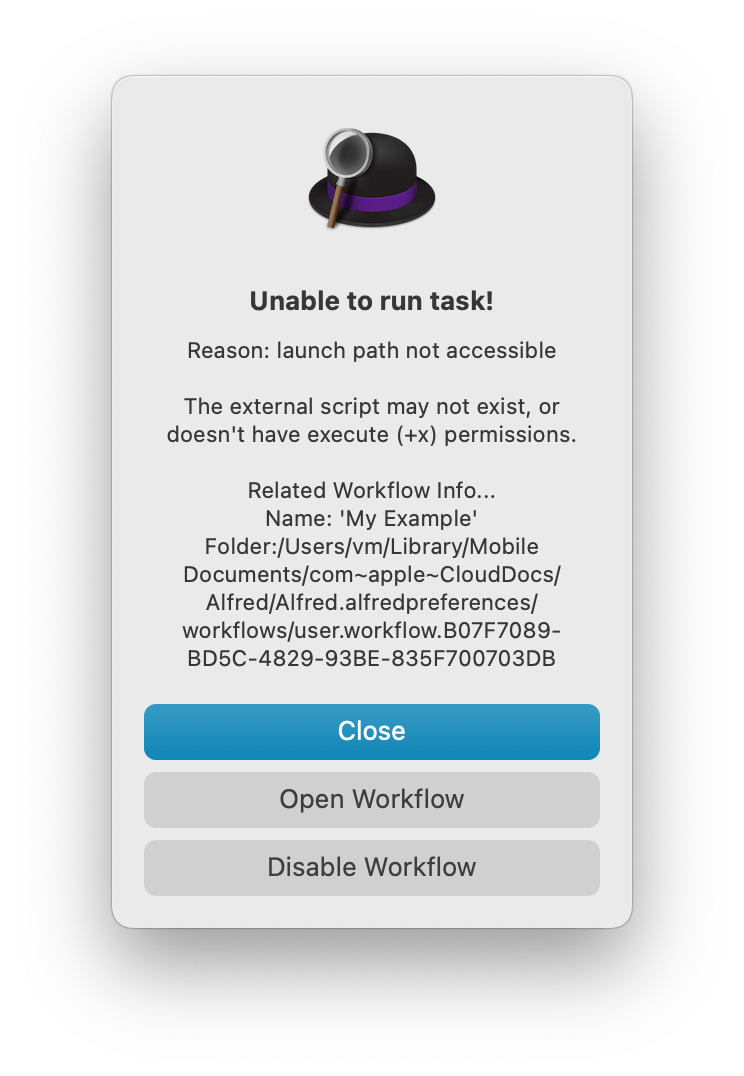
As this is a syncing issue, the steps to resolve this are focused on your cloud syncing service:
1. Check that files are stored offline
Alfred needs always-on access to preferences, so your Alfred.alfredpreferences package needs to be available locally. You will need to configure this individually on every Mac where you sync Alfred.
Each cloud service has a distinct process, so check your configuration, ensuring that the folder containing your Alfred.alfredpreferences is available at startup, always available offline and doesn't require special permissions.
Instructions on setting files to be stored offline for Dropbox, Google Drive, iCloud and OneDrive.
Dates on the Preferences package
Note that the date on the Alfred.alfredpreferences package will in all likelihood be older than your most recent change. This is normal and does not indicate that your preference package is out of date.
2. Look for syncing conflicts
In the Sync Your Alfred Settings page, you'll find instructions on configuring your first Mac, then your second Mac.
The same instructions apply when looking for conflicts between your Macs; Ensure the first Mac has fully synced up your Alfred.alfredpreferences package to the cloud service, then check the second Mac has fully synced down the same preferences.
Manually check that recently added files inside the Alfred.alfredpreferences package match and the enclosing folder is available offline on each Mac.
3. Temporarily unset syncing
The next troubleshooting step is to take your cloud sync service out of the equation.
- In Alfred's Advanced preferences, set your sync location to a folder in your root folder (e.g.
~/Alfred/) - Run the workflow where you encountered an error message
If you no longer get the error message, it confirms that the sync service was the issue.
Create a new sync folder in your preferred cloud service and ensure it's set to be stored offline, then use it as new sync location in Alfred's Advanced preferences.
4. Keep in mind that cloud services change
While on the surface, it may appear that you haven't changed your sync setup, cloud services such as Dropbox are making changes on an ongoing basis which are invisible to the user.
Review the steps above if you suddenly start seeing errors relating to syncing.