Dynamic Placeholders: Time and Date
Alfred's Dynamic Placeholders can save you time and effort in so many ways.
Haven't heard of placeholders before? They're stand-ins for text that is dynamically inserted into your snippet. This could be a date, your current or past clipboard content, a random string from a list, or even another snippet! 🤯
In the next three posts, we'll take a look at a few ways to use these clever placeholders in your snippets and workflows, beginning with simple placeholders like dates and date arithmetics.
Creating our Date Placeholder
For a placeholder containing today's date:
{date:dd/MM/yy}
When pasted, this date will follow the format of 23/09/26, which is date / month / year, each one in two-digits format and in my preferred order of date before month.
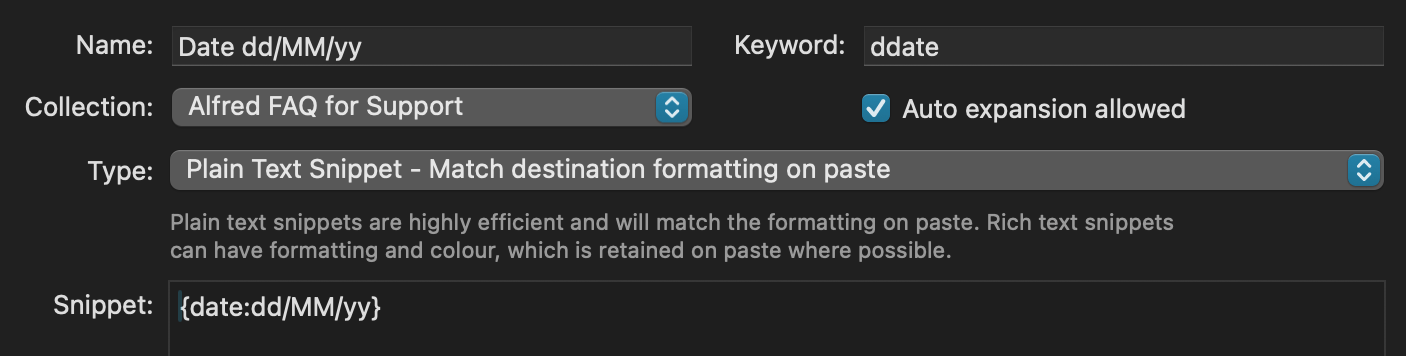
If I add +1d, the snippet will calculate tomorrow's date:
{date +1d:dd/MM/yy}
As we've added a calculation of +1 day, we'll see 24/09/26 - the 24th of September, a day later than our date above.
Need the time two days and six hours ago? Sure!
{datetime -2d-6h}
The format of the date can be changed to your preference, from a full text date and time to the number of the week of the year.
To do this, you can use Alfred's full, long, medium, and short shortcuts:
{datetime:full}
The resulting snippet output will be Wednesday, 23 September 2026 at 13:14:27 British Summer Time.
Alternatively, you can use the Unicode Date Format Patterns to create any date and time format that suits your needs.
Formatting and capitalisation matters
It's worth noting that
MMandmmare not the same; Always check your capitalisation, or you may add minutes instead of the month to your placeholder!
Using the Dynamic Placeholder in a Snippet
To embed your date or time dynamic placeholder in a snippet, create your usual snippet and include the formatted dynamic placeholder in curly brackets.
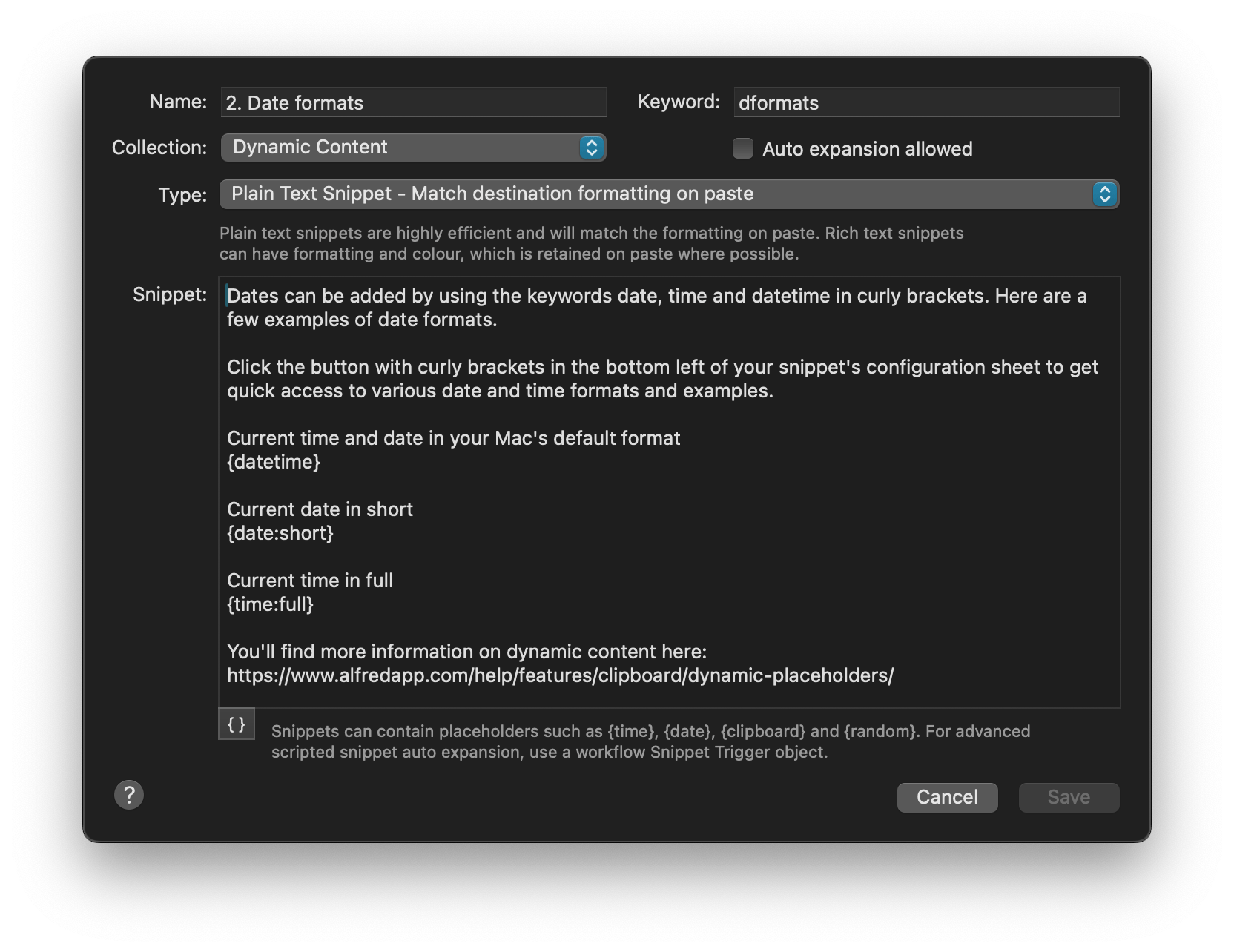
Note that you can browse a selection of dynamic placeholder examples by clicking on the button with the curly brackets in the bottom left of your snippet text field.
In the next post, we'll take a look at using the clipboard's content, random items and other snippets as dynamic placeholders.
In the meantime, I hope that creating a few convenient snippets with placeholders will save you many "What day of the week is it, again!?" moments. Alfred always has the answer for you.