Dynamic Placeholders: Integrating with Workflows
In the last two posts on Dynamic placeholders, we covered how to insert the date and time, and how to use a variety of other useful sources of content such as your clipboard, query, or a random string.
In this third guide to Dynamic Placeholders, we're integrating placeholders into workflows.
Your snippet can be created on the fly by popping up a prompt in a workflow:
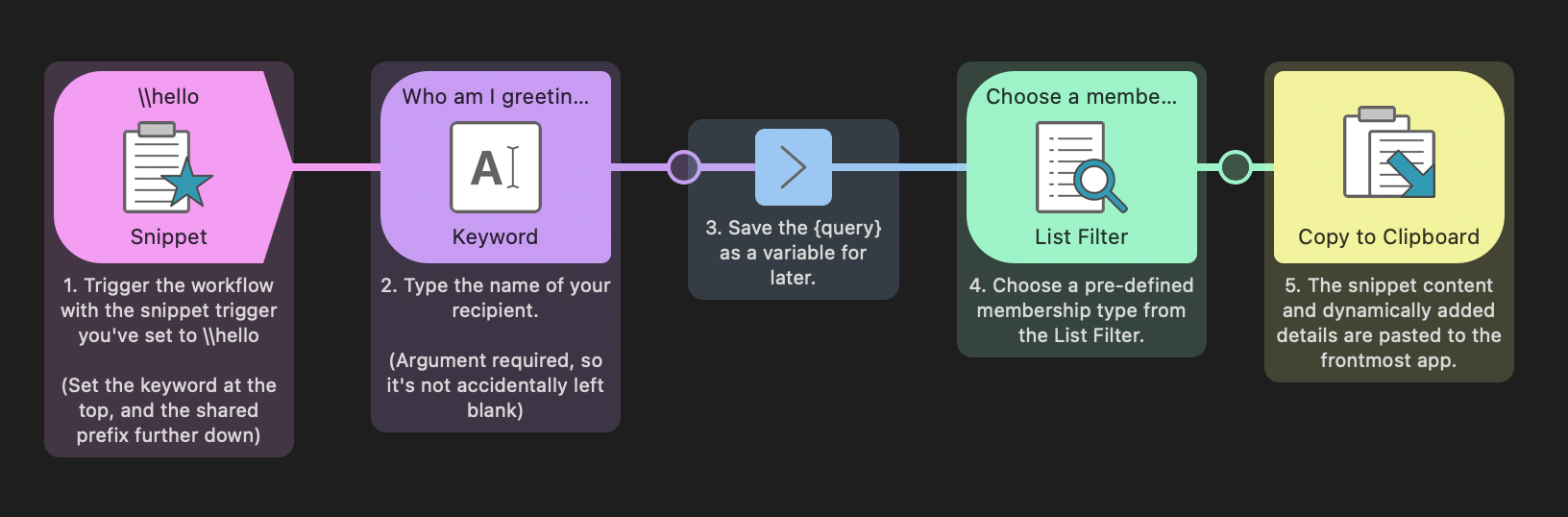
For this snippet, I'd like to add two bits of dynamic content; First, I want to type the name of a new club member, and second, choose a type of membership from a pre-defined list. Finally, I want this snippet to paste to the frontmost app.
1. Trigger the Workflow via a Snippet
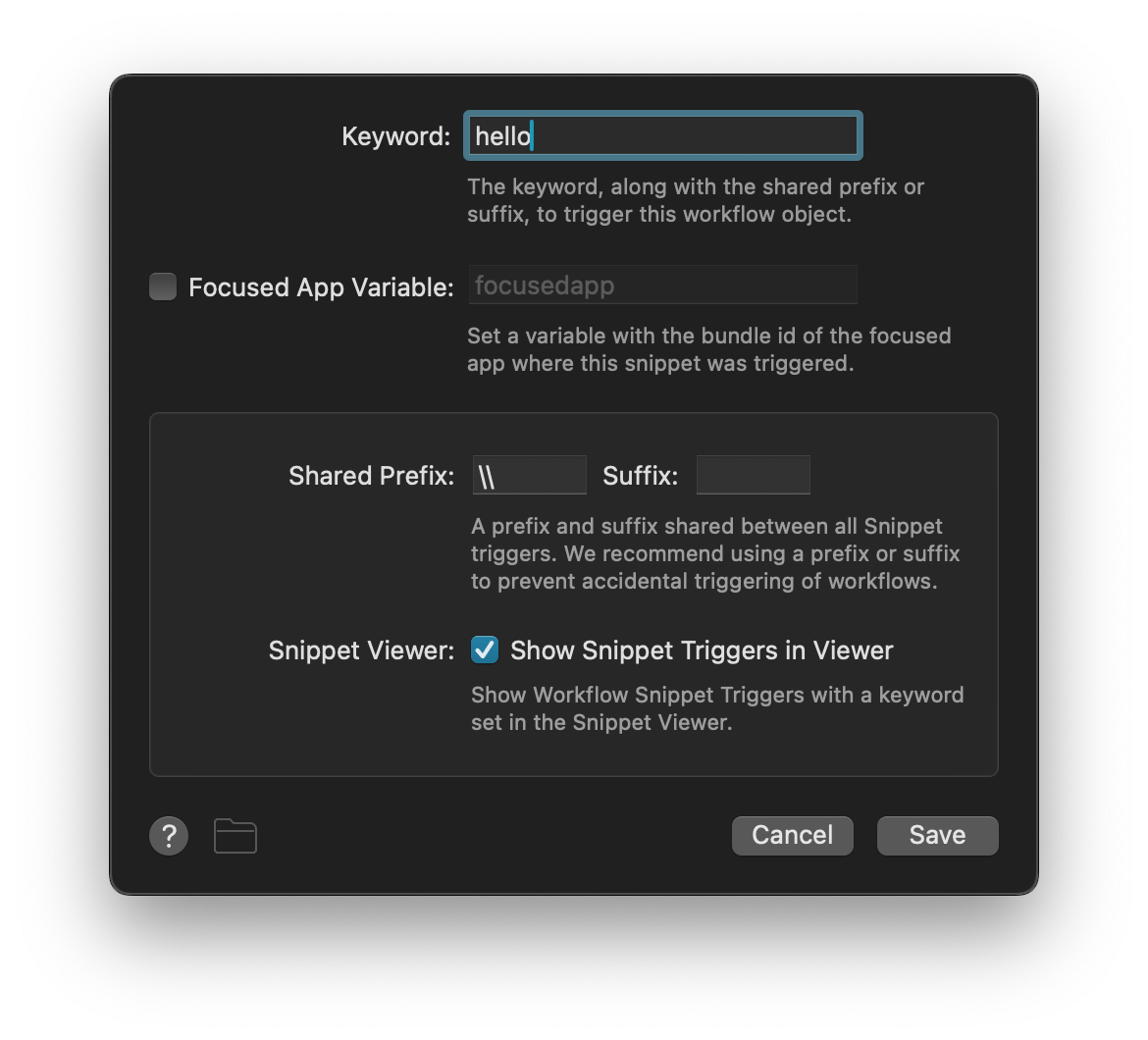
The Snippet Trigger is set to the keyword hello with the prefix \\. Typing \\hello in any email or document will trigger the snippet.
2. Pop up a Text Input
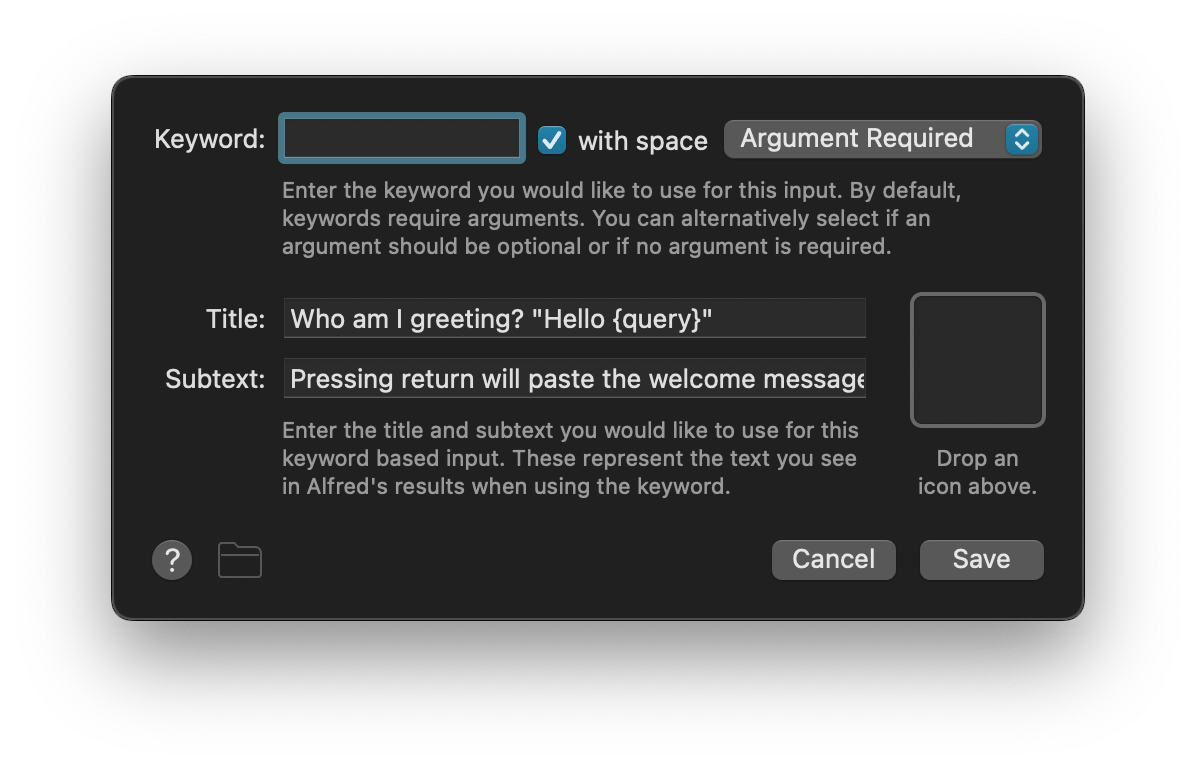
The Keyword Input's keyword field is left blank and set to "Argument required". This is when I can type the name of my new club member.
3. Save the Member Name for later
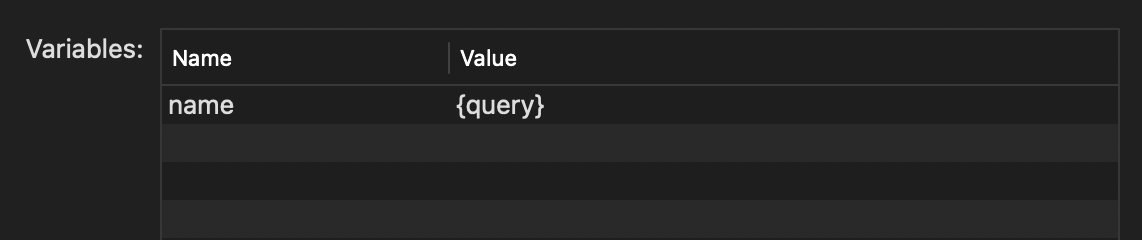
The Argument & Variables Utility saves the club member's name to a variable for later use.
4. Choose a membership type from a list
In the List Filter Input, I've pre-defined
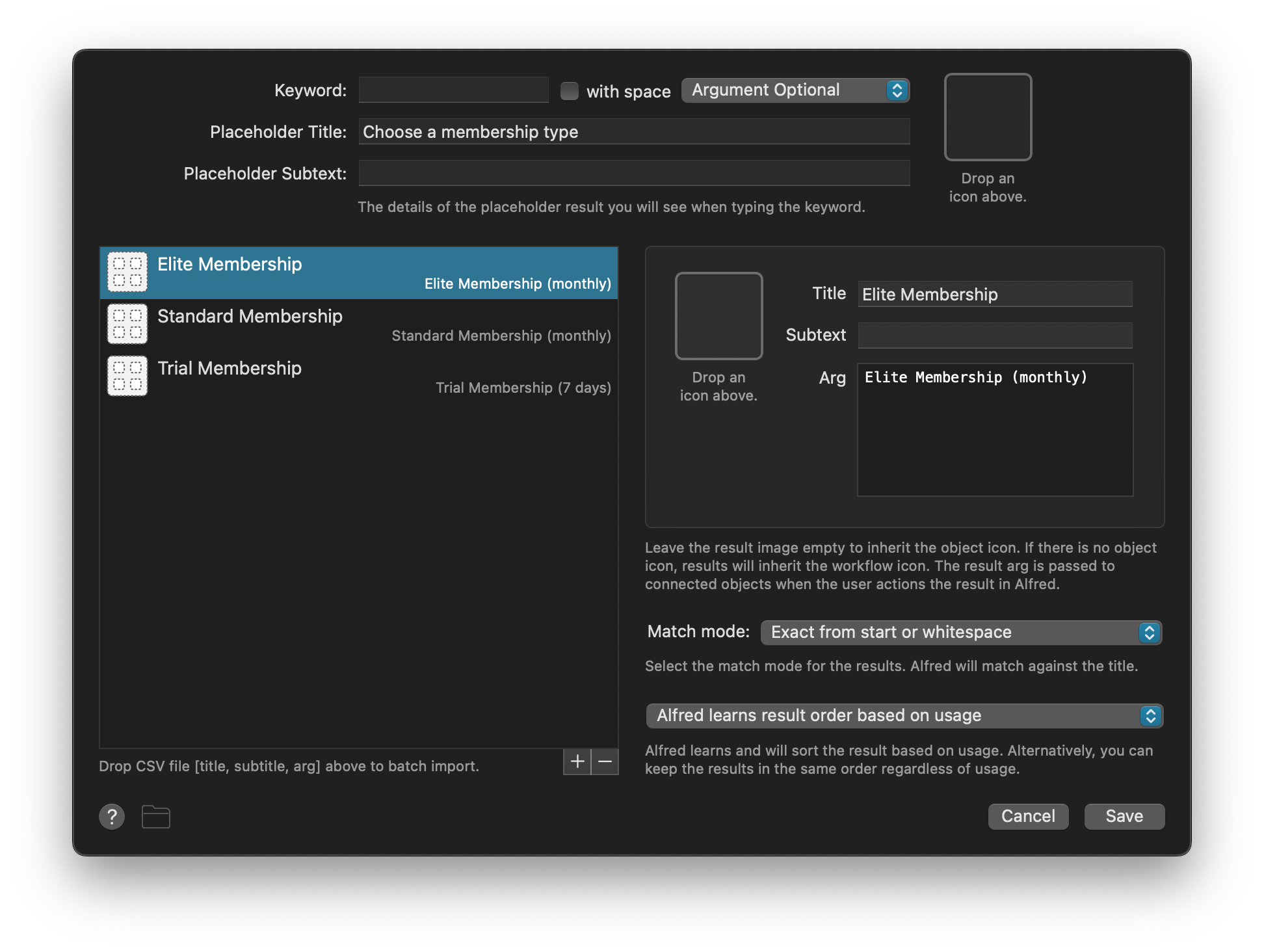
5. Paste the snippet to the frontmost app
The final object is a Copy to Clipboard Output.
Now that I've entered a choice for both placeholders, pressing Return will paste the full snippet to the frontmost app, replacing the dynamic placeholders.
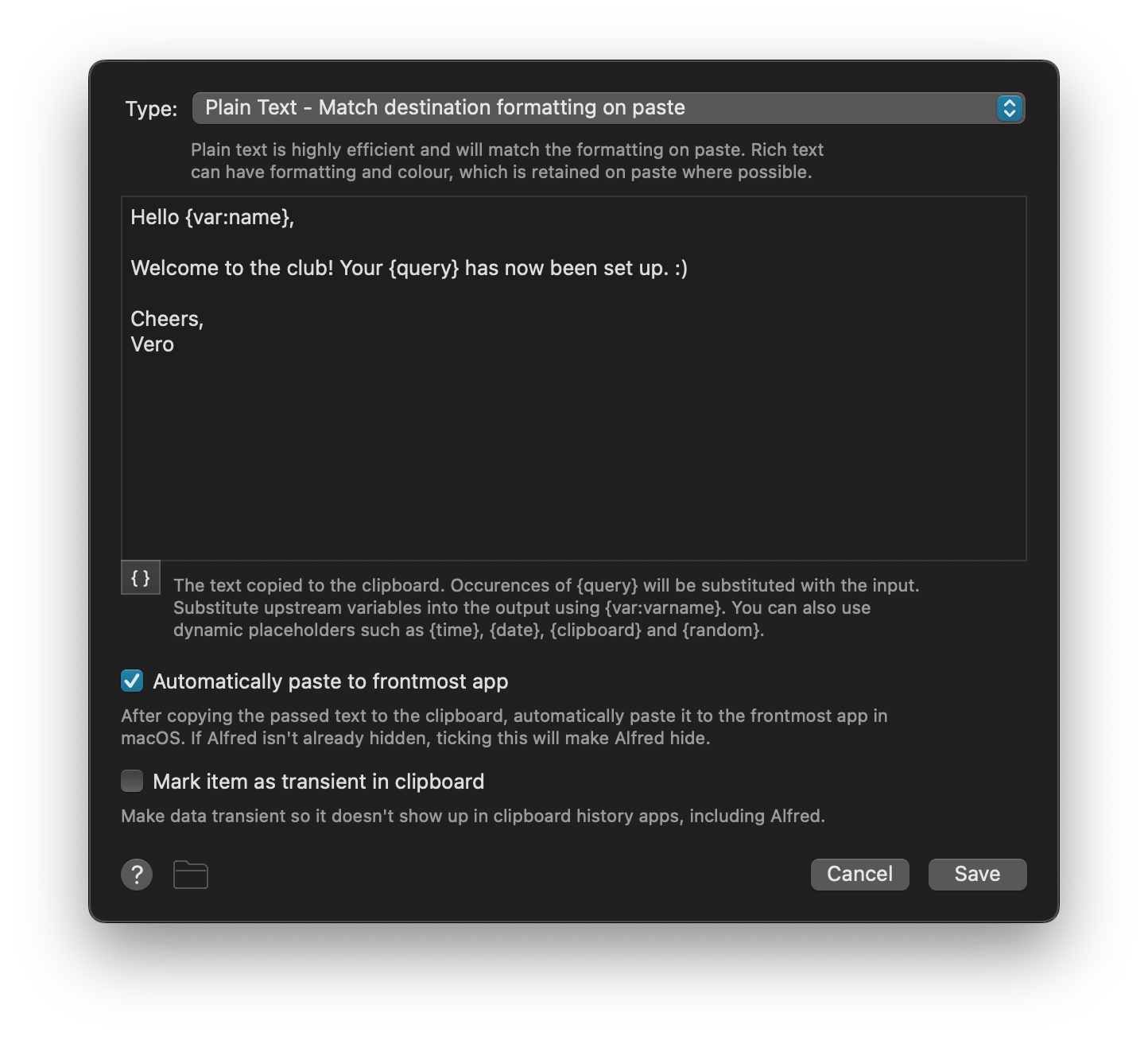
Our workflow in summary
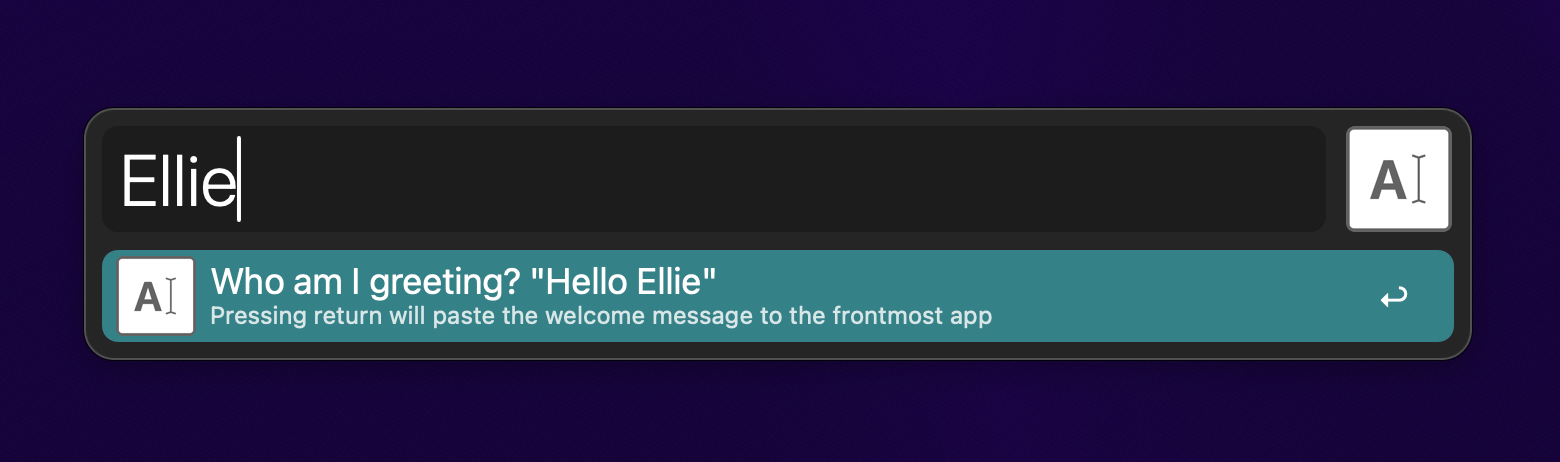
Typing \\hello in the app where I want the final snippet to appear pops up our first prompt where I can type a name:
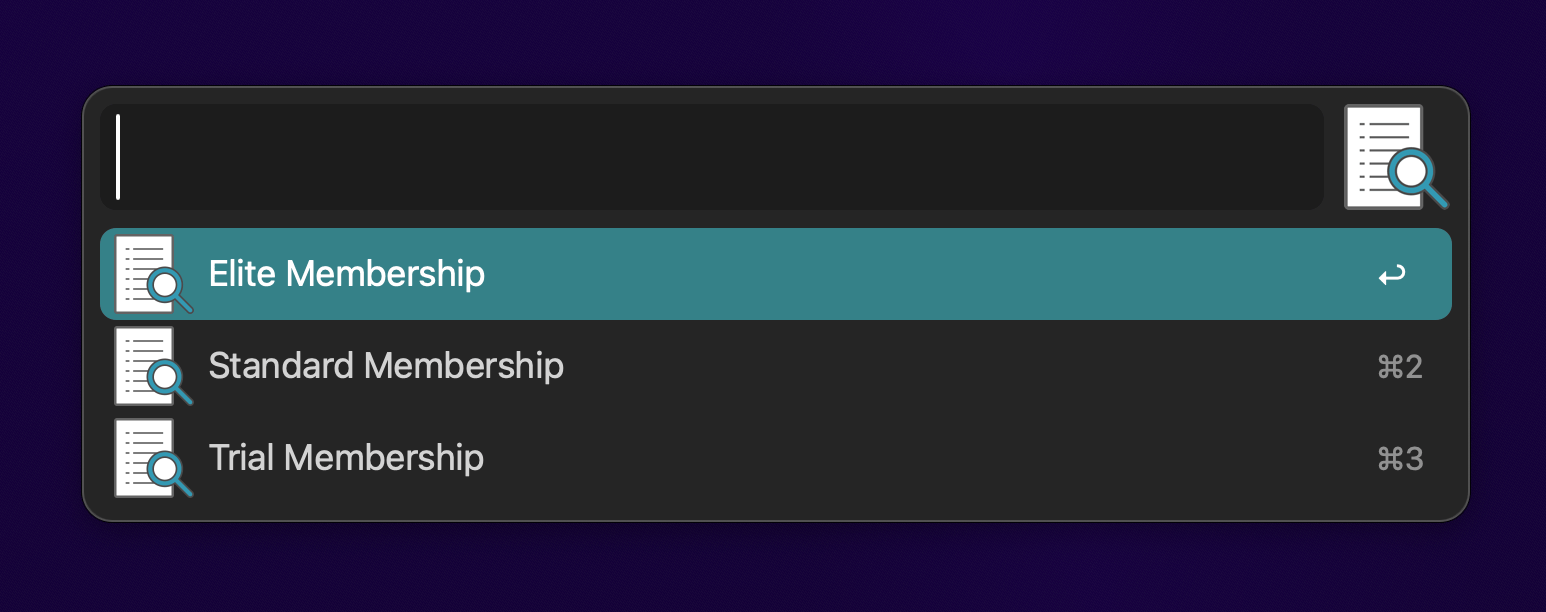
Next, we choose the Membership Type from the list:
Pressing Return pastes the output to the frontmost app:
Hello Ellie,
Welcome to the club! Your Trial Membership (7 days) has now been set up. :)
Cheers,
Vero
What snippets could you create with dynamic placeholders that will take care of repetitive tasks for you?