Dynamic Placeholders: Adding 5 Content Types to your Snippets
In an earlier post, we experimented with Dynamic Placeholders for date and time, which can be used in snippets and workflows.
In this second guide, let's take a look at other convenient Dynamic Placeholders available in Alfred.
Clipboard
Use the {clipboard} placeholder to insert the current clipboard content into a snippet or {clipboard:3} for an older clipboard item.
Snippets
Do you already use Alfred's Snippets feature? If so, you can add snippets inside your snippets!
{snippet:snippetkeyword} will insert another snippet within your snippet.
Random
Need to spice up your snippet by adding a bit of randomness? You can write a handful of friendly introductions, then let luck decide which one will be inserted when your snippet expands.
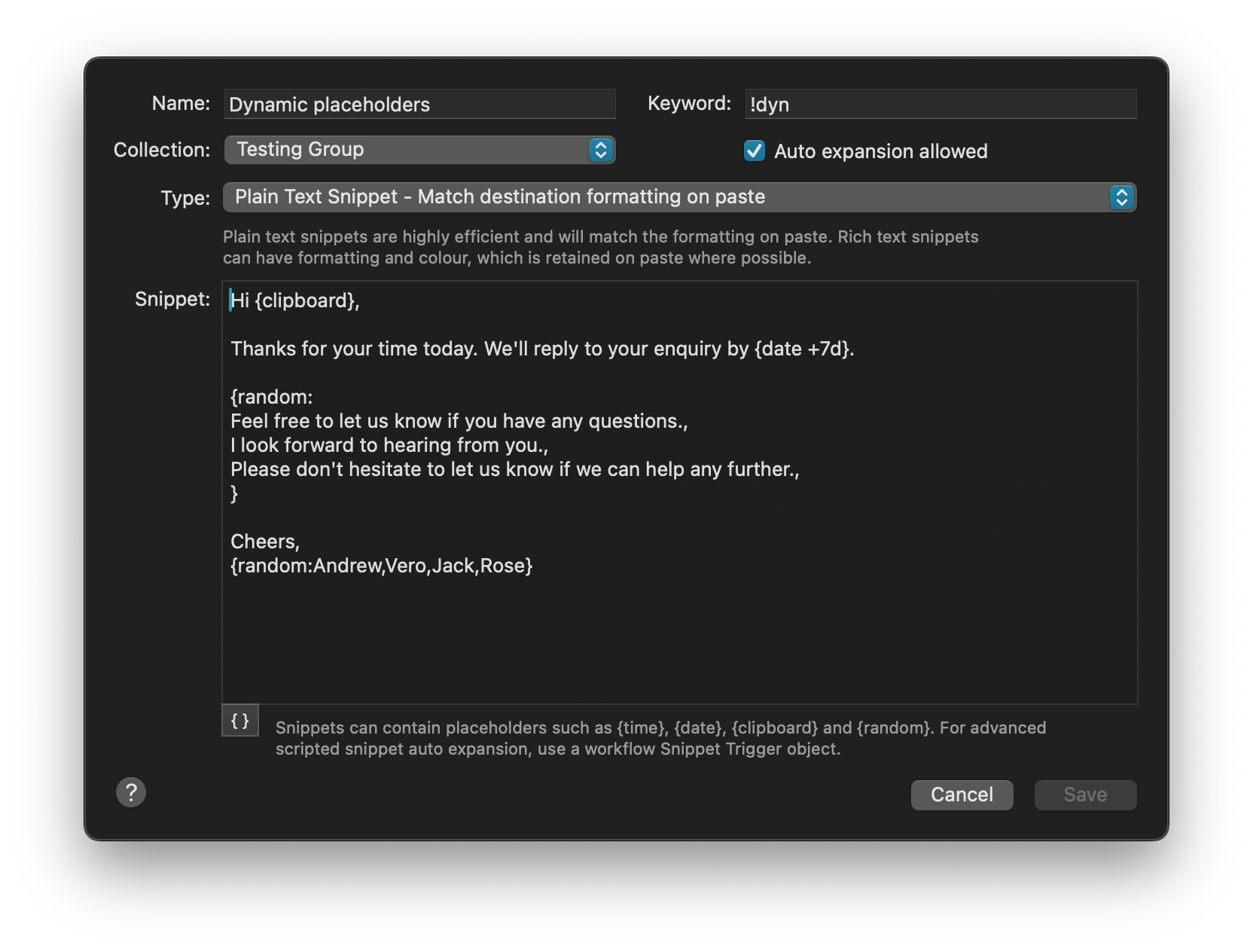
To insert a random name from a pre-defined list, use {random:Andrew, Vero, Jack, Rose}.
For a random number, you can use {random:1..100} for a number between 1-100, or {random:UUID} to create a random unique identifier string.
Cursor
Adding {cursor} to your snippet will re-position your cursor from the end of the snippet to the specified position after pasting the snippet.
Workflow Query
In the context of a workflow, you can also use the {query} placeholder to insert the argument passed by the previous object of your workflow.
Hot Tip: Use the Formatting Examples
Use the curly quotes button at the bottom of the Snippets text box for some built-in handy formatting examples, or take a look at the Dynamic Placeholders page for more detailed information on using every type of placeholder.
What's next?
You now know how to integrate date and time placeholders in your snippets and workflows, as well as all of the variables above.
In the last post in this series, we'll look at three ways to use placeholders in workflows; To add free text on the fly, choose content from a pre-defined list and perform a non-text action.
Who knew Dynamic Placeholders were quietly such a powerhouse?