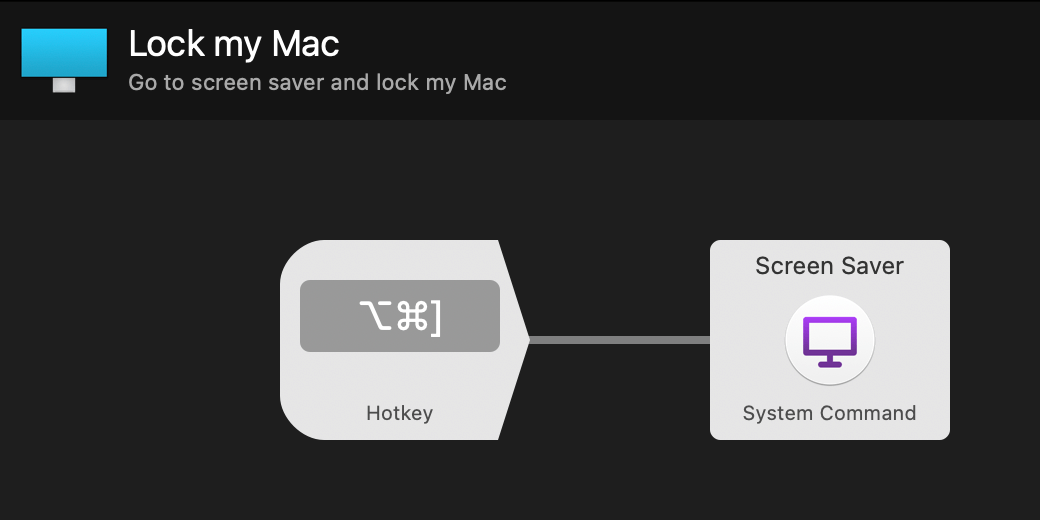
Alfred's new Universal Actions feature includes Workflow Keyword Input and Script Filter objects by default as a convenient way to get started with actions.
In many cases, it's preferable to have finer control over which Workflow objects integrate with Universal Actions, and how they connect to your workflow.
This is where the Universal Actions Trigger object comes in.
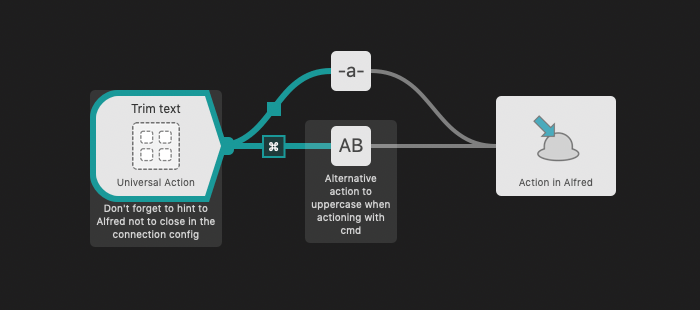
Place this object in your workflow and give it a name. Connect this to any node in the workflow, and this action is now available to use in the Universal Actions panel.
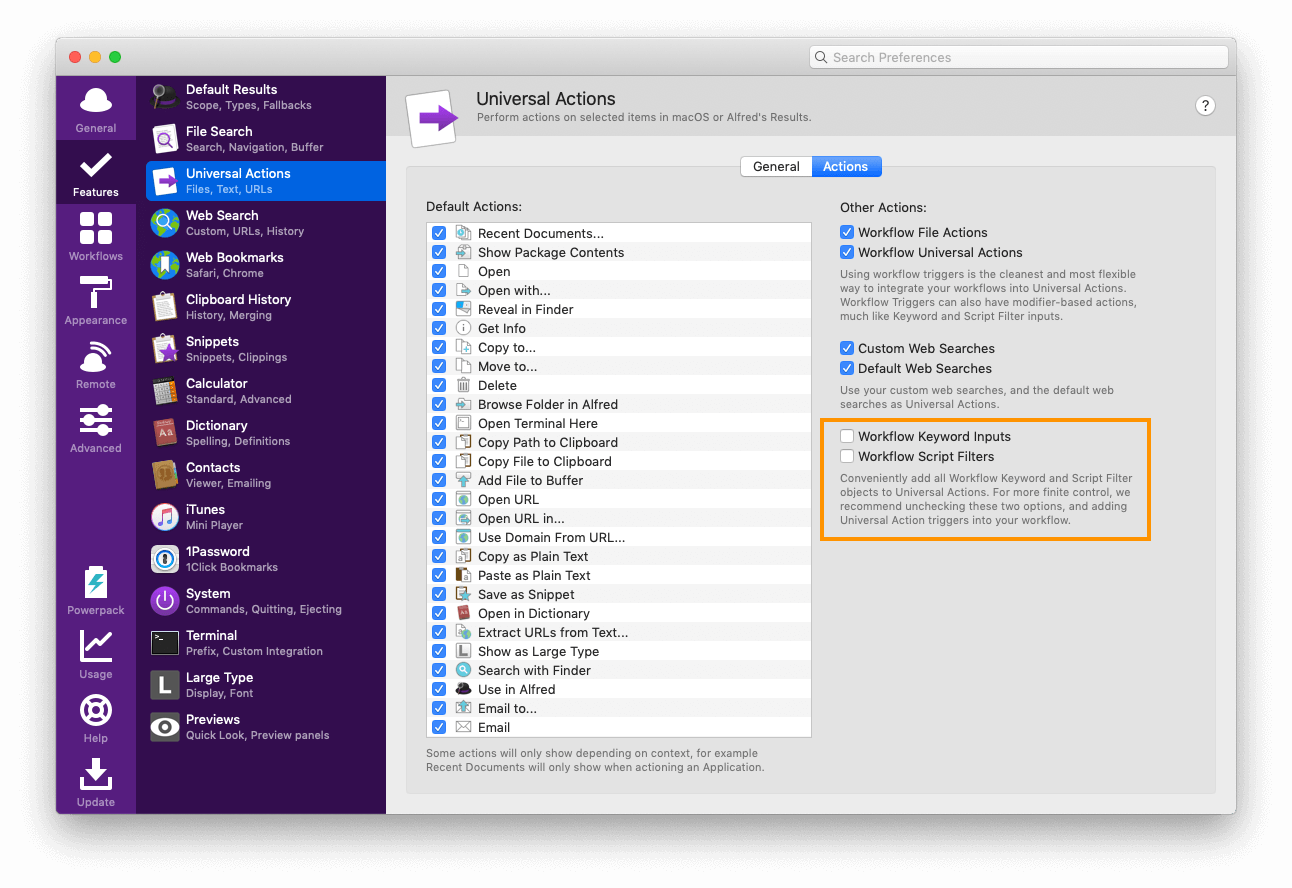
You can disable the default Keyword Input and Script Filter from being added by default in Alfred's Features > Universal Actions > Actions preferences.
Take a look at the built-in Getting Started > Universal Actions workflow from the + button in Alfred's Workflow preferences to see the above example in action.
Alfred 4.5 is an exciting milestone, bringing you a whole new way to use Alfred!
With the new Universal Actions feature, you can select text in your browser, a URL in an email or a file on your Desktop and pop up Alfred's Actions panel to choose what to do with your content. Start anywhere and jump into action.
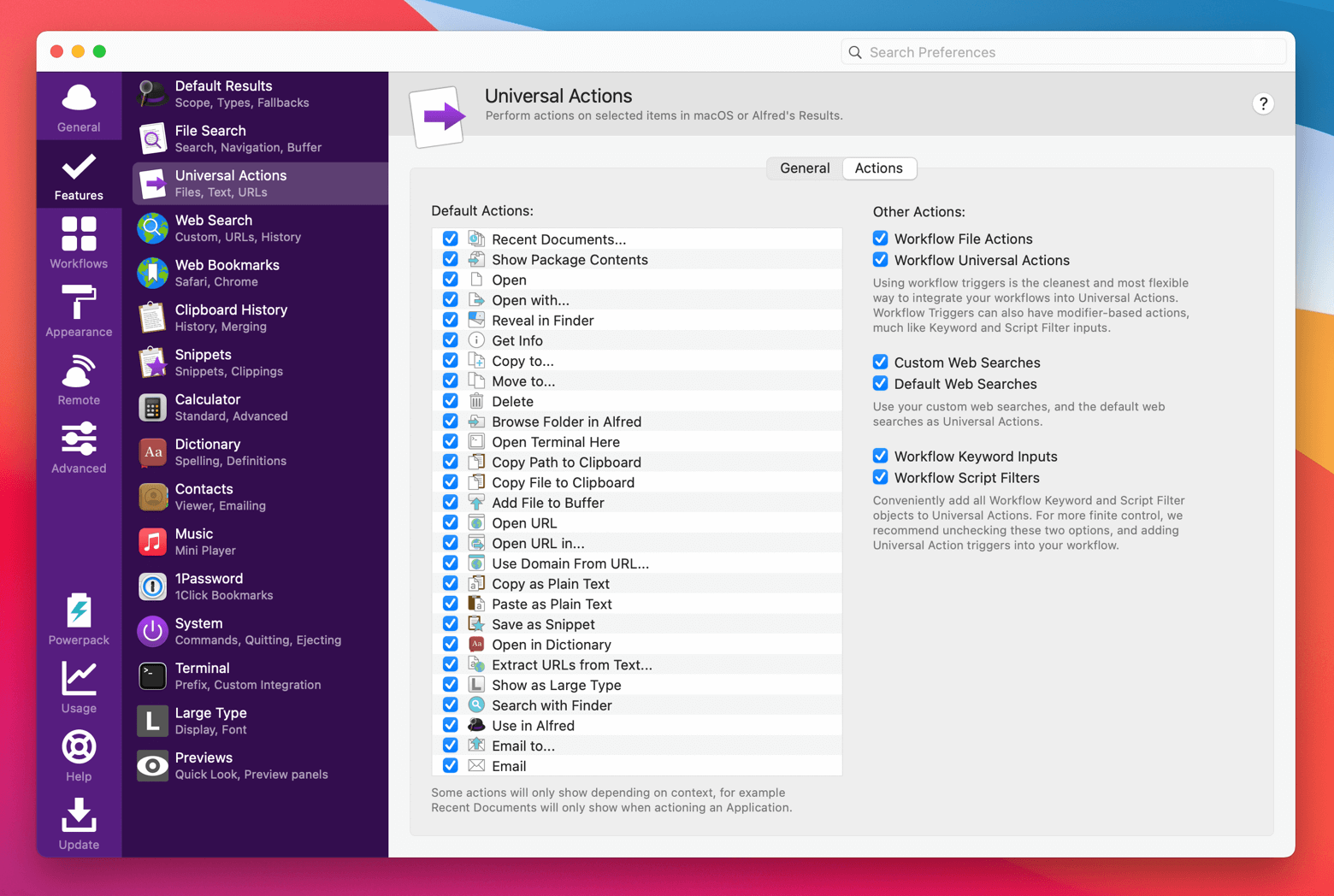
Alfred includes over 60 default actions, such as copying to your Clipboard, saving as a Snippet, searching the web, showing recent documents for an app or extracting URLs from a block of text.
Depending on the result type you're showing Actions for, Alfred will intelligently narrow down the list to show relevant actions. For example, when you choose a file or a block of text, you only see the actions that can be used on that item type.
You can access Universal actions from:
- Your Alfred results, including File Navigation and Clipboard History, where you can use the right arrow (or your own set Actions shortcut) to show the list of available actions
- From your Desktop or anywhere on your Mac, by selecting a file, URL or some text and using your Actions hotkey
- From within a workflow, using the Action in Alfred object
Over the next few days, we'll share a few ways to interact with Universal Actions, including integrating them with your workflows.
You can grab the latest release in Alfred 4's Update tab, or by downloading it from alfredapp.com. Curious to see everything that's been added? Take a look at the change log for the full list of new features and improvements.
We love seeing Alfred community members get excited about productivity on Twitter, on their blogs and in videos or podcasts. Sure, we enjoy sharing our own tips and tricks, but it's even better to read or hear yours.
David & Rosemary's Automators Podcast

You may already know long-time host of the Mac Power Users podcast, David Sparks (aka MacSparky). He also co-hosts a podcast called Automators in collaboration with Rosemary Orchard. A few weeks ago, they dedicated episode 76: Automating with Alfred to covering in incredible depth the many ways they use Alfred.
Rosemary's tips are:
"Set your shortcut to CMD+Space and replace Spotlight, look for Alfred workflows for the apps you use every day, and explore the settings!
Alfred has lots of features, try Clipboard History, Snippets, 1Password integration, or anything else that catches your eye."
Snazzy Labs
Quinn Nelson, also known as Snazzy Labs, has been publishing honest tech reviews on YouTube since 2008. We should know; Quinn was one of the very first people to ever review Alfred in video form in 2010! Eleven years on, he reviews his favourite Mac Apps, saying:
"This is the one app I truly cannot use a Mac without. It is the best Mac app ever made, and it's the first app I install on every new Mac."
Gosh, you're making us blush!
Chris Messina & Aron at Automate All The Things
Chris Messina, who introduced the world to the hashtag, has shared his enthusiasm for Alfred all over the web, most recently chatting with Aron Korenblit of Automate All The Things, as well as sharing his own workflow and themes.
The Productivity Shop
Luke Carter from The Productivity Shop also covers in great detail how he uses Alfred, "one of the building blocks of his workflows". He dedicates the first half of his video to the core (non-Powerpack) features, and the second half to Powerpack features, so it's a great intro to share with a friend or colleague new to Alfred.
Ali Abdaal
And finally, Ali Abdaal, a Cambridge University medicine graduate, certainly wins the prize of most unusual description, calling Alfred "the lubricating jelly to his Mac life" in his Favourite Mac Apps in 2020 video. 😆
If you've written or shared how you use Alfred, be sure to tweet us @alfredapp to let us know. Happy reading, listening and watching!
Alfred 4.5 is a very exciting major update to Alfred, bringing you a whole new way to use Alfred.
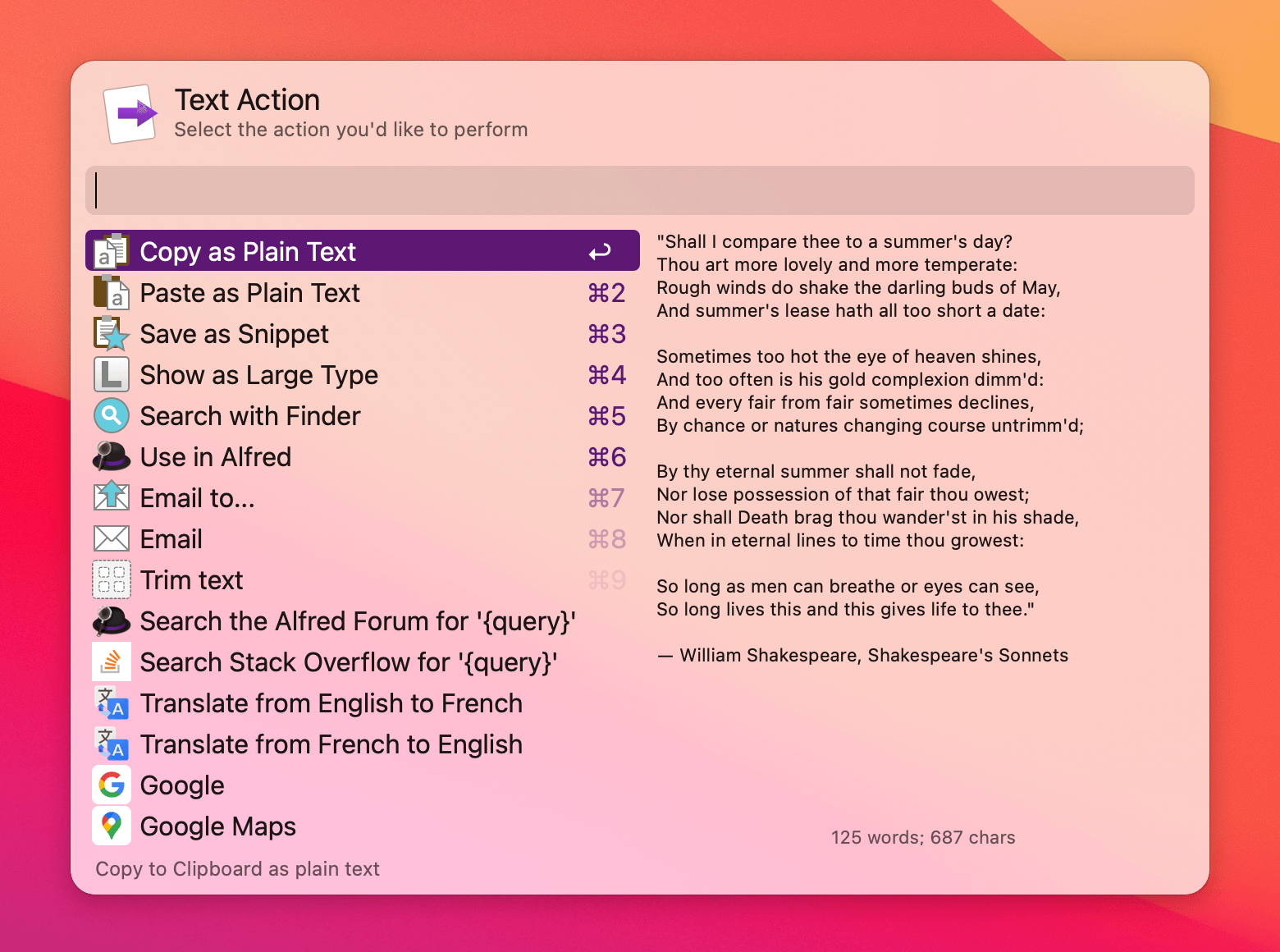
In Alfred 4.5, you can take any text, URLs or files and perform actions on them from anywhere within Alfred or on your Mac using your Universal Action hotkey.
This update is currently in pre-release, if you'd like to take an early look. New to pre-releases? Go to Alfred's Update preferences and choose "Pre-releases" from the dropdown menu; You'll now see more frequent Alfred updates and early features.
Find out more about Universal Actions on the official preview page!
Alfred's System Commands are so simple to use, they can easily go unmentioned.
From emptying your Mac's trash and launching your screen saver, to hiding or quitting apps and ejecting volumes, the System Commands are brilliantly useful. No need to take your fingers off the keyboard, or hunt for items in the menu bar.
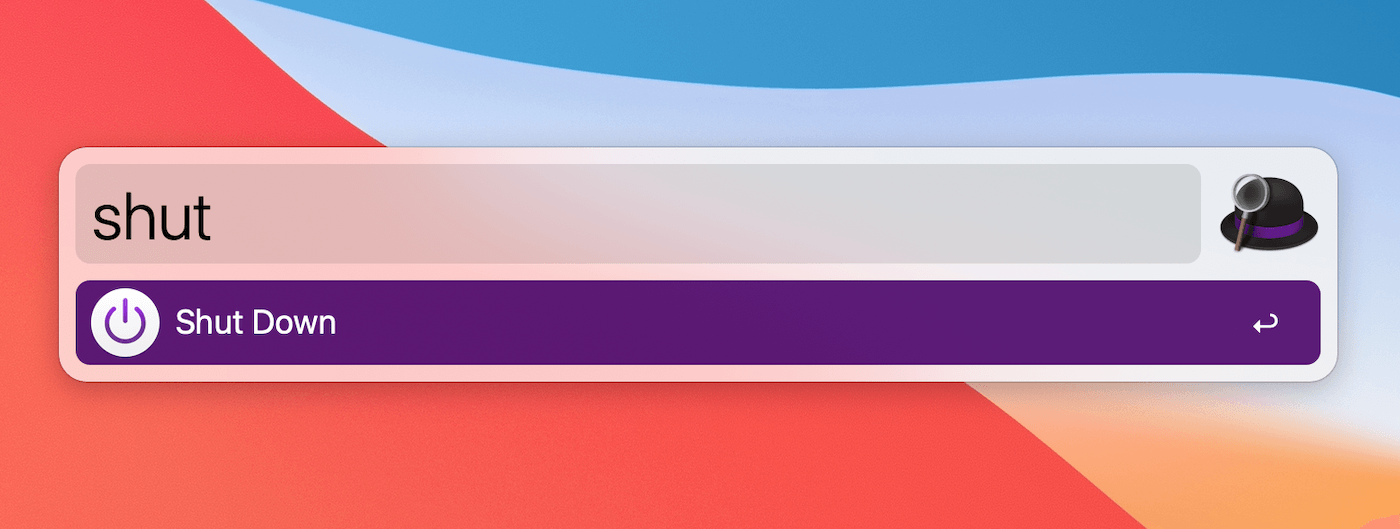
Many of the commands can be set to require confirmation before performing them, so that you don't accidentally restart your Mac when you meant to open Reminders.
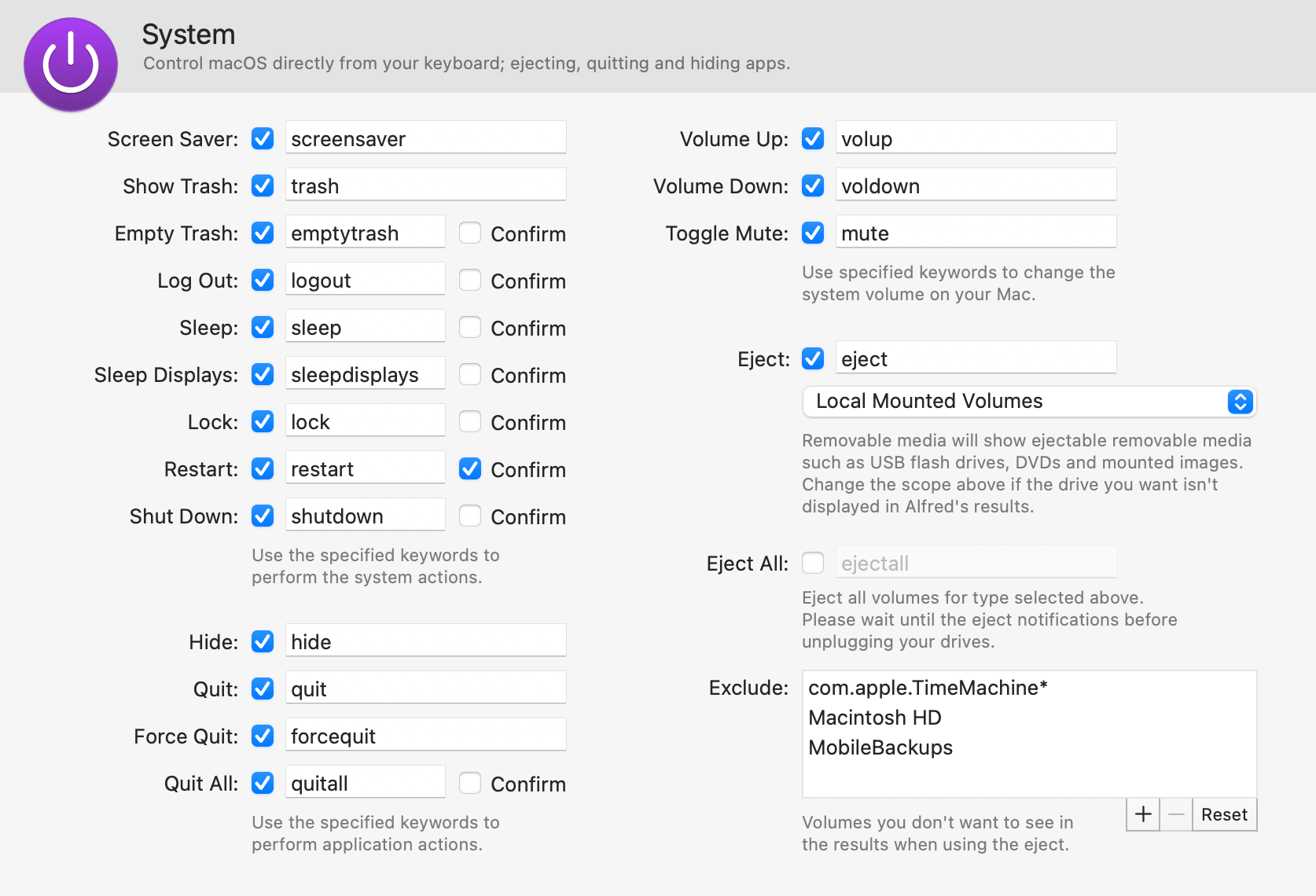
Want to lock your screen before leaving your Mac?
My most-used command is the screen saver; My Mac is set to require a password after sleep or screen saver (which you can set in your System Preferences > Security & Privacy > General), so when I step away from my Mac, I can type "scr" and know my Mac is locked.
I've also created a workflow so that I can trigger the screen saver command with a hotkey combo, which makes it even quicker to set!