Connecting your Alfred Remote to your Mac using a Wi-Fi connection is the fastest and most reliable way. However, there are occasions where this may not be possible, either because your devices can't be on the same network or there is no Wi-Fi network available.
In cases like these, Bluetooth can be used to pair your iPhone/iPad to your Mac, allowing you to use Remote without relying on a network.
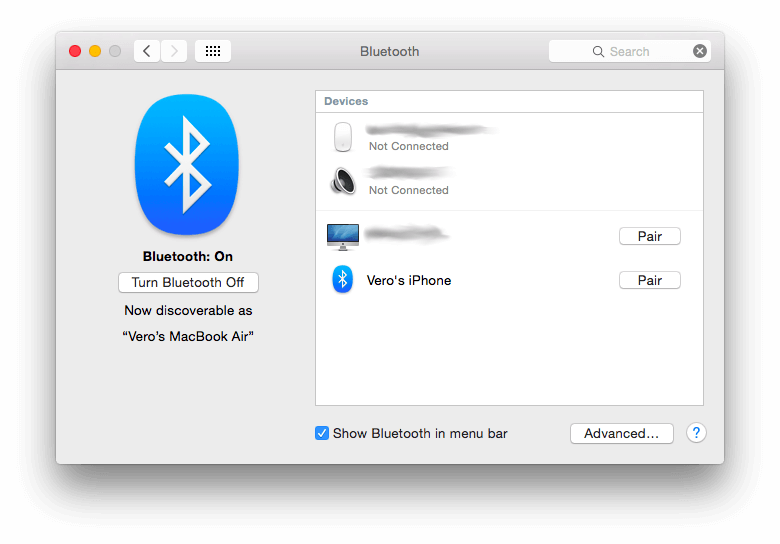
The Bluetooth connection is a great alternative for these occasions where there's no suitable Wi-Fi, but comes with a few caveats; Bluetooth itself is a slower way to connect so you'll find that icons can take some time to load on the first connection to a new Remote. Once set up, it's quite fast at dispatching actions to your Mac.
It is also reliant on your Mac and iPad/iPhone staying in close proximity to each other, so your Remote will need to be kept within a few feet of your Mac for reliability.
With these points in mind, it still provides a very convenient alternative to the Wi-Fi connection. Bluetooth pairing only takes a few seconds to set up, and we've created a handy tutorial on setting up Remote using Bluetooth.
When working on a web design project, the most time-consuming part is often testing in various browsers. To solve this problem, I created a little workflow that would allow me to quickly launch a URL in three browsers at once by tapping an icon on my Remote.
In this tutorial, I'll show you how you can create this workflow in just a few minutes. I also hope it will inspire you to find those small-but-repetitive jobs in your own day that you can replace with workflows or Remote actions to become more productive and less burdened by tiresome tasks.
Creating a Remote action is a two-step process; First, I'll create the workflow itself, choosing the actions I want it to perform. Then, I'll add it to the Remote page.
If you're completely new to workflows, take a look at this tutorial on creating a workflow without a single line of code, which goes in a bit more detail to get you started.
Creating a workflow to launch in multiple browsers
The first step is to create a new workflow. I started with a blank workflow, gave it a name and icon. I then added one "Keyword" input and three "Open URL" actions from the + in the top right of the workflow page. I connected my keyword to all three actions, then proceeded to set each one up.
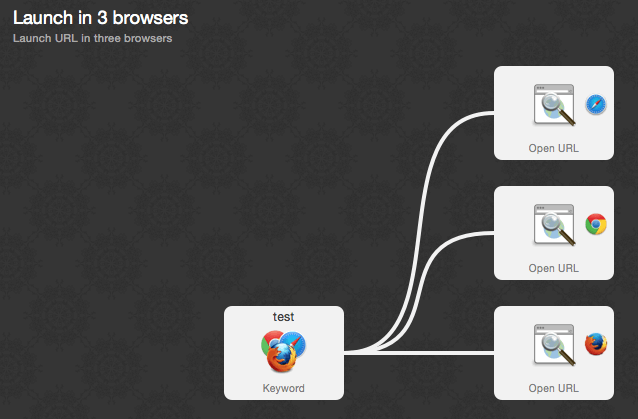
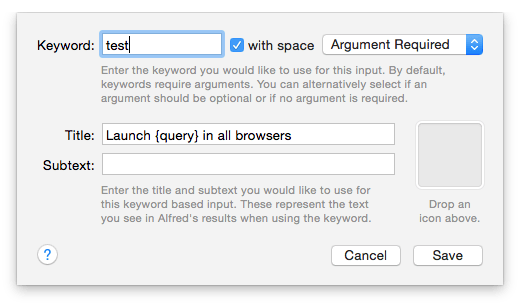
When setting up the keyword, I assigned it the keyword "test" with a required argument, which will be the URL I'll type or paste in.
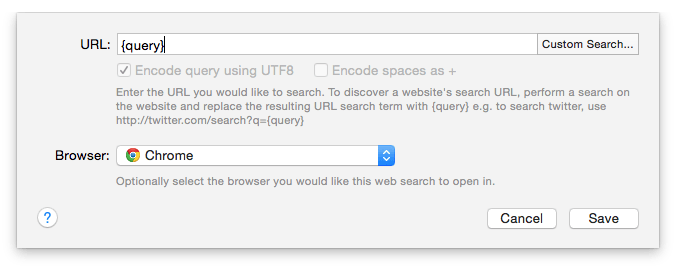
I double-clicked each of the "Open URL" actions, adding {query} as the URL; This means that the text I type after my "test" keyword will be passed on as the URL each browser needs to launch. Of course, I also choose a different browser for each one, so that it launches in Safari, Chrome and Firefox.
I now essentially have a functioning workflow, as I can type test http://alfredapp.com into Alfred and press return to launch it in all three browsers.
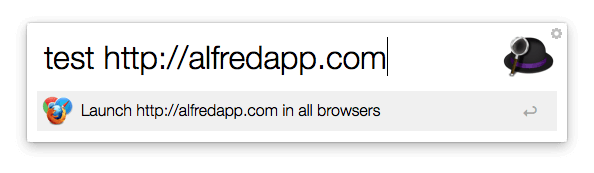
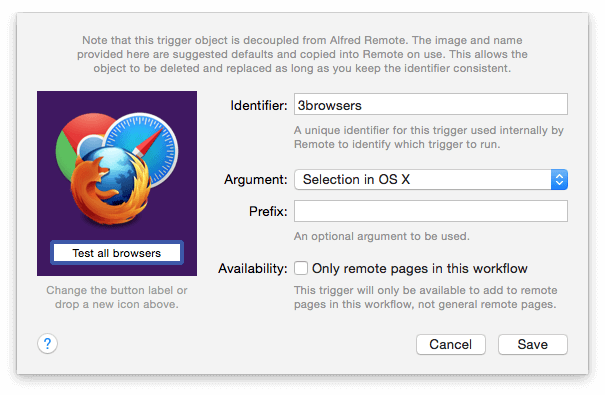
However, as I want to use this workflow in Remote, I also need to add a Remote trigger object. I connect this Remote trigger directly to all three "Open URL" actions; I'm not connecting it to the "test" keyword as I want the action to launch the browsers, not pop up Alfred with the "test" keyword.
In this case, I decided that I want the Remote action to use my current selection in OS X as the {query} argument. You could choose to use the current clipboard content if you prefer or choose to use text and enter a fixed URL if you're always testing the same site. I've also given the trigger a unique identifier, an icon and a name.
Adding the action to your Remote
Now that I've added a Remote Trigger to the workflow, I can add this action to a Remote page. To do this, I go to the Remote tab in Alfred's preferences on my Mac.
I want to add the action to an existing Remote page; Clicking on an empty space brings up the list of actions I can add to my Remote. Under Run Workflow Trigger, my "Launch in 3 browsers" workflow contains the single action created earlier.
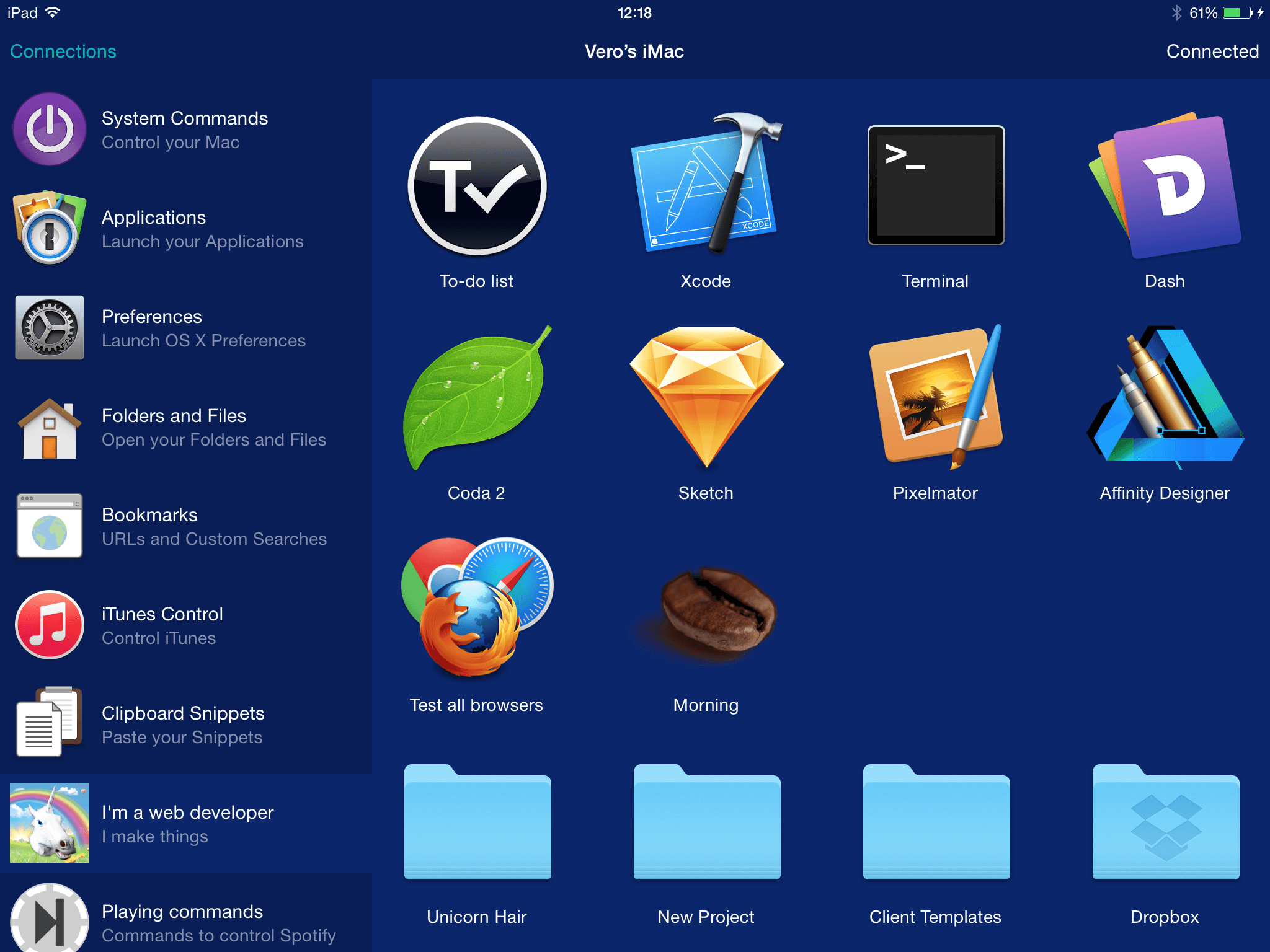
And here we go, there's a new action on my Remote page called "Test all browsers". Tapping it from my iPad will make my Mac launch the URL I've selected in OS X in the three browsers I want to test in.
Tweaking workflows to your own needs
You can download the workflow I've created from Packal, or follow the steps above to create it yourself. You can also grab the icon I created for the workflow or create your own.
When creating or importing an existing workflow, don't forget to customise it to your own needs. For example, I could add a hotkey, similar to the Remote trigger, which launches the workflow with either the OS X selection or clipboard contents. I could add multiple keywords where various pre-defined sites are launched if I know that I'm always testing the same few websites.
I hope that this tutorial will give you a glimpse into how flexible workflows and Remote actions are, and how you can ease the pain of repetitive tasks by creating your own workflows.
Want to see anything in particular in the next tutorial? Tweet us (@alfredapp) your ideas and I'll cover a few over the coming weeks :)
Yesterday was an absolute hoot - thank you to everyone who bought Alfred Remote on launch day! And thank you for all the wonderful tweets, blog posts and comments you've made. It's great to hear that so many of you have immediately adopted Remote into your Mac life.
As Alfred and Remote are so flexible, there are many ways you can put them to best use to suit your own lifestyle. In this post, I shine a light on some of our favourite uses for Remote so far, as well as a few you've shared with us so far.
Pair up your Remote to your Mac
Grab your iPad or iPhone and pair it with your Mac. It should only take a moment to check your Mac and iOS device are on the same Wi-Fi network, and pair your devices by following the steps in the Remote tab of Alfred 2.6's preferences on your Mac. They'll then be able to securely communicate with each other.
Get the right setup
You'll also want to set up your iPad or iPhone to be comfortably accessible so that it becomes a quick-fire command centre while you're working.
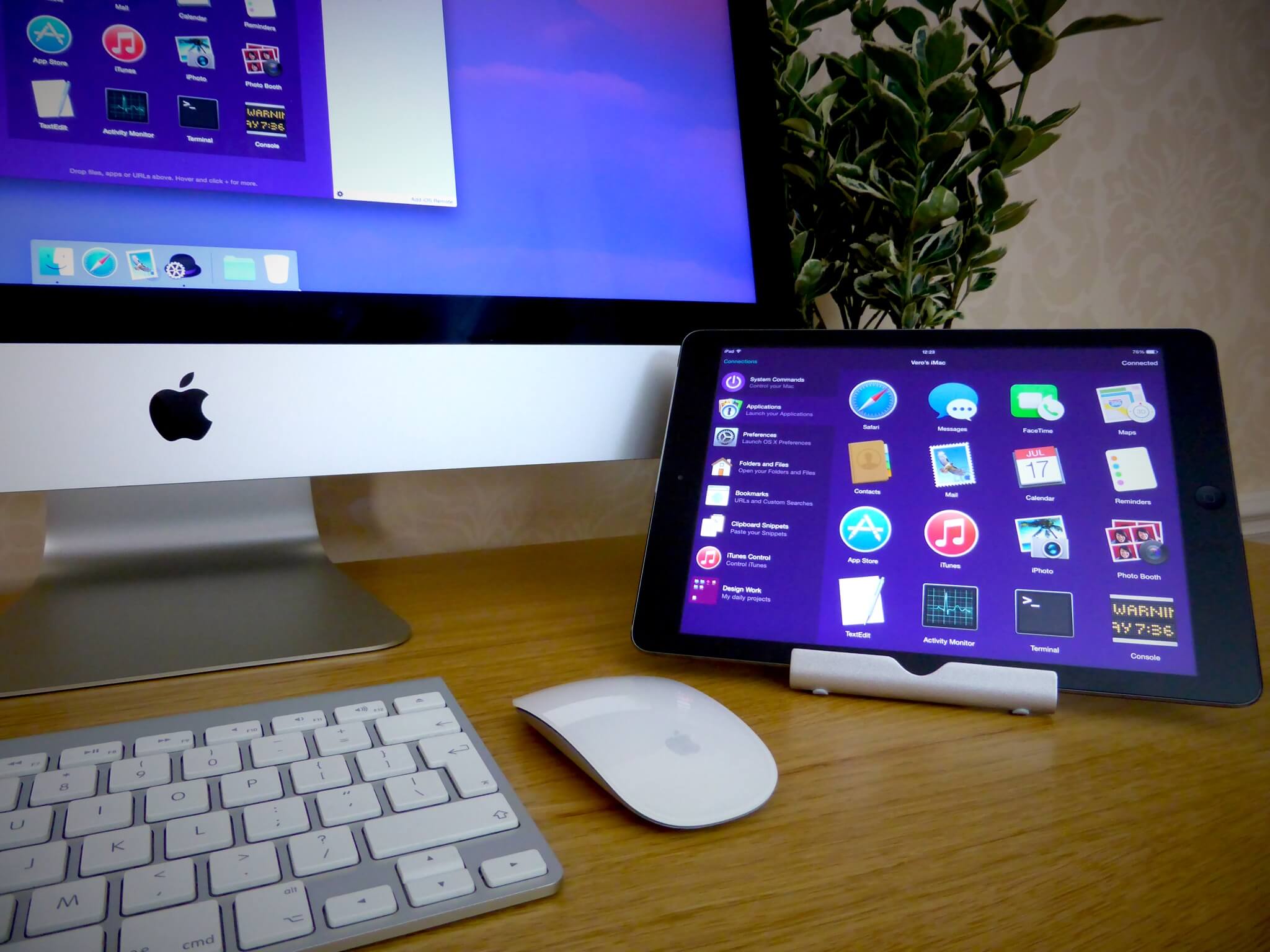 Yes, my desk is always this tidy... ahem...
We've got a few iPad and iPhone stands we love; In the promo video and the photo above, you can see the stand Andrew and I use daily. It's the Anker stand, which is small and understated, and works for both the iPad and iPhone.
The other stand we occasionally use is from Just Mobile; It's stable and stands a little higher, which is great for the old iPad 2 that sits in the kitchen and primarily serves as a music controller.
So long as your iPad or iPhone can run iOS 7 or 8, it'll make a great Alfred Remote, so dig out those older devices that are going unloved at the bottom of your drawer!
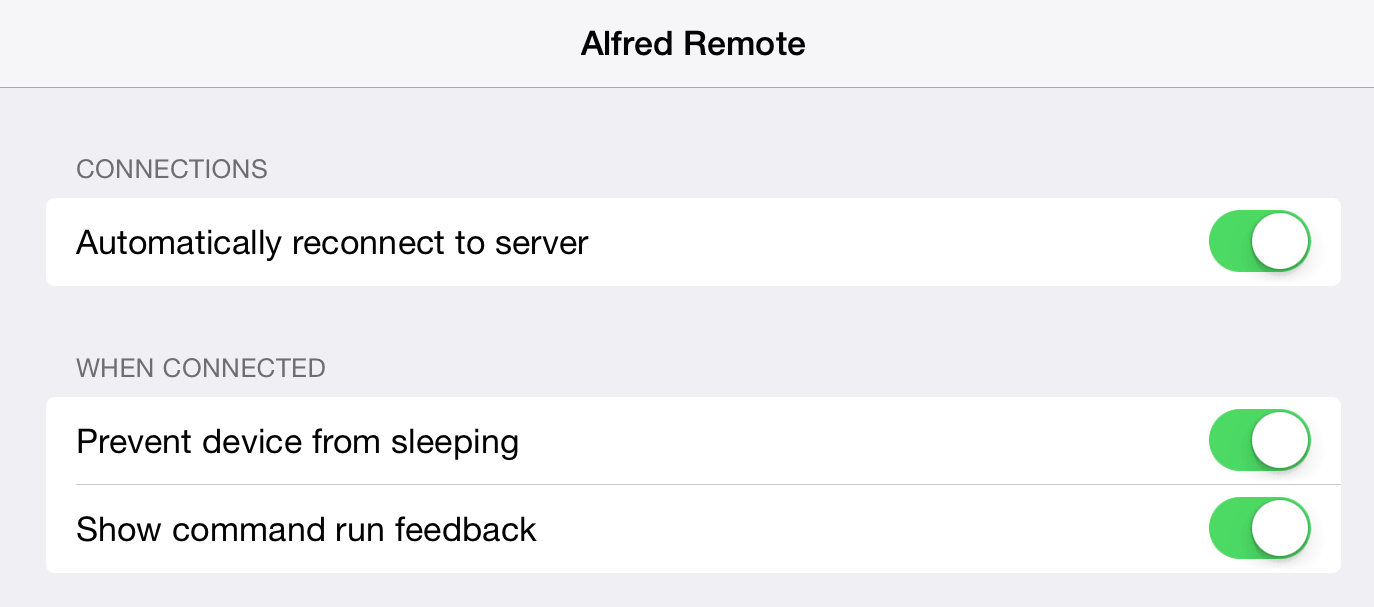
For your convenience, we've included an option in your iOS Settings, where you can choose to prevent your device from sleeping when Alfred remote is active. It's particularly handy if you're planning on sitting at your desk all day with your iPad plugged in, and want to keep your iPad awake.
Fill up your own pages
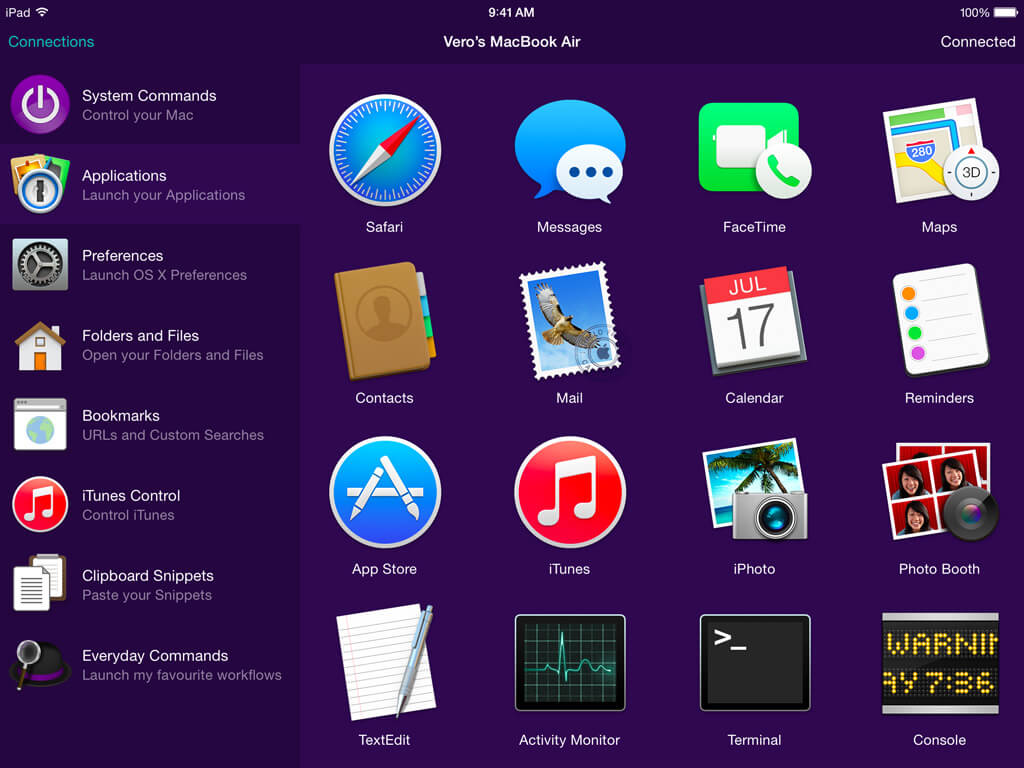
To get you started, we've included some default Remote pages, including a page of popular Apple apps, System Commands, common folders and bookmarks. However, Remote really comes to life once you start swapping out apps for YOUR favourite ones, and creating pages for things you use daily.
For designers and developers
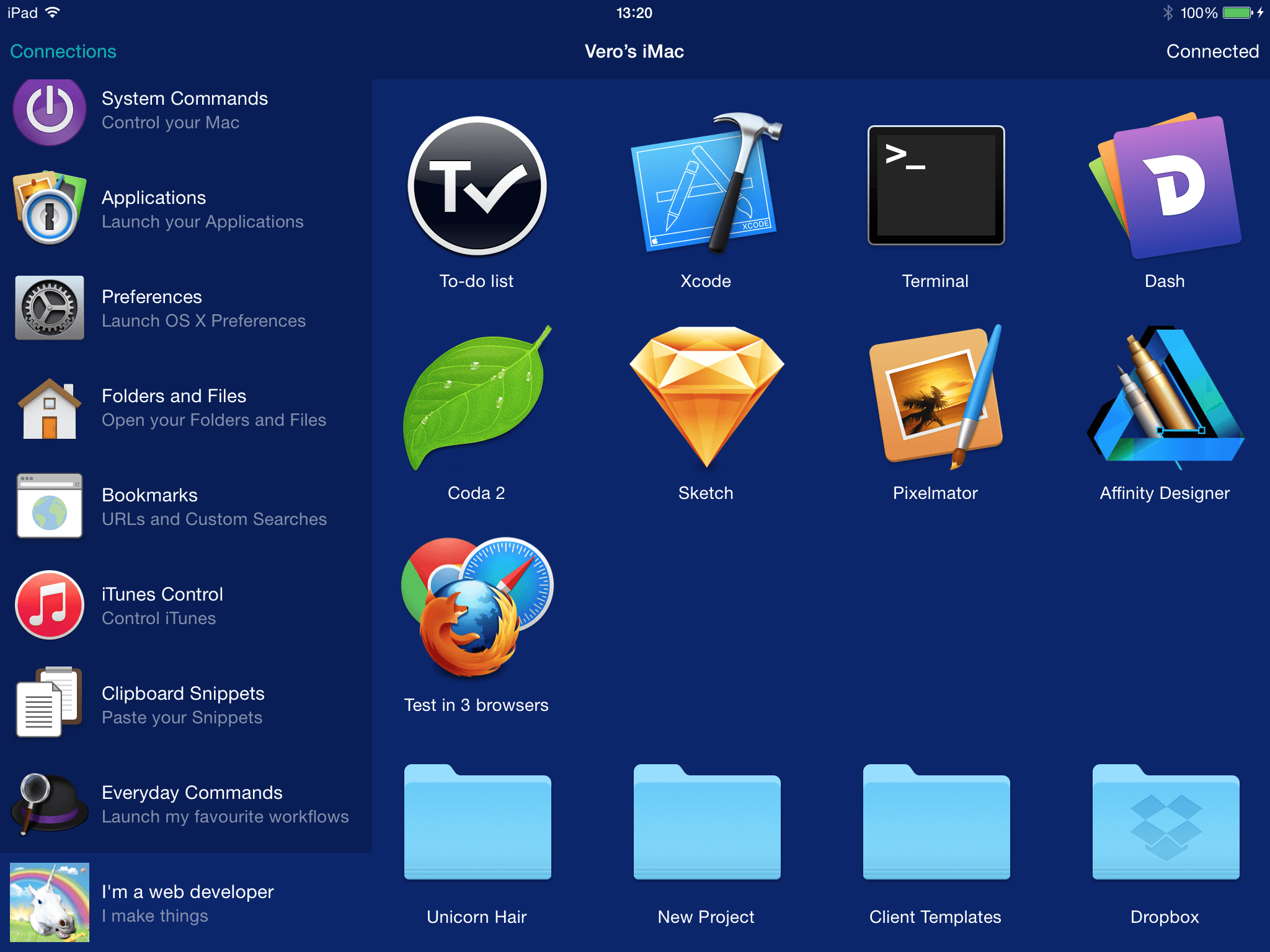
Create a page or two containing your most used apps, folders for your main projects, a bookmark for API documentation you need to use many times a day, and an action to launch your current URL in all of your browsers to allow you to quickly test your work.
In my next post, I'll also show you how you can power-up your Remote by launching multiple actions with a single tap with the help of Alfred's workflows.
For music fiends
You'll find the iTunes control page bundled with Remote, which gives Powerpack users to control iTunes; Play tracks, start random albums and rate your . However, if you're keener on Spotify, Vincent de Saboulin has also produced a fantastic Spotify workflow which gives you a huge amount of control over your music.
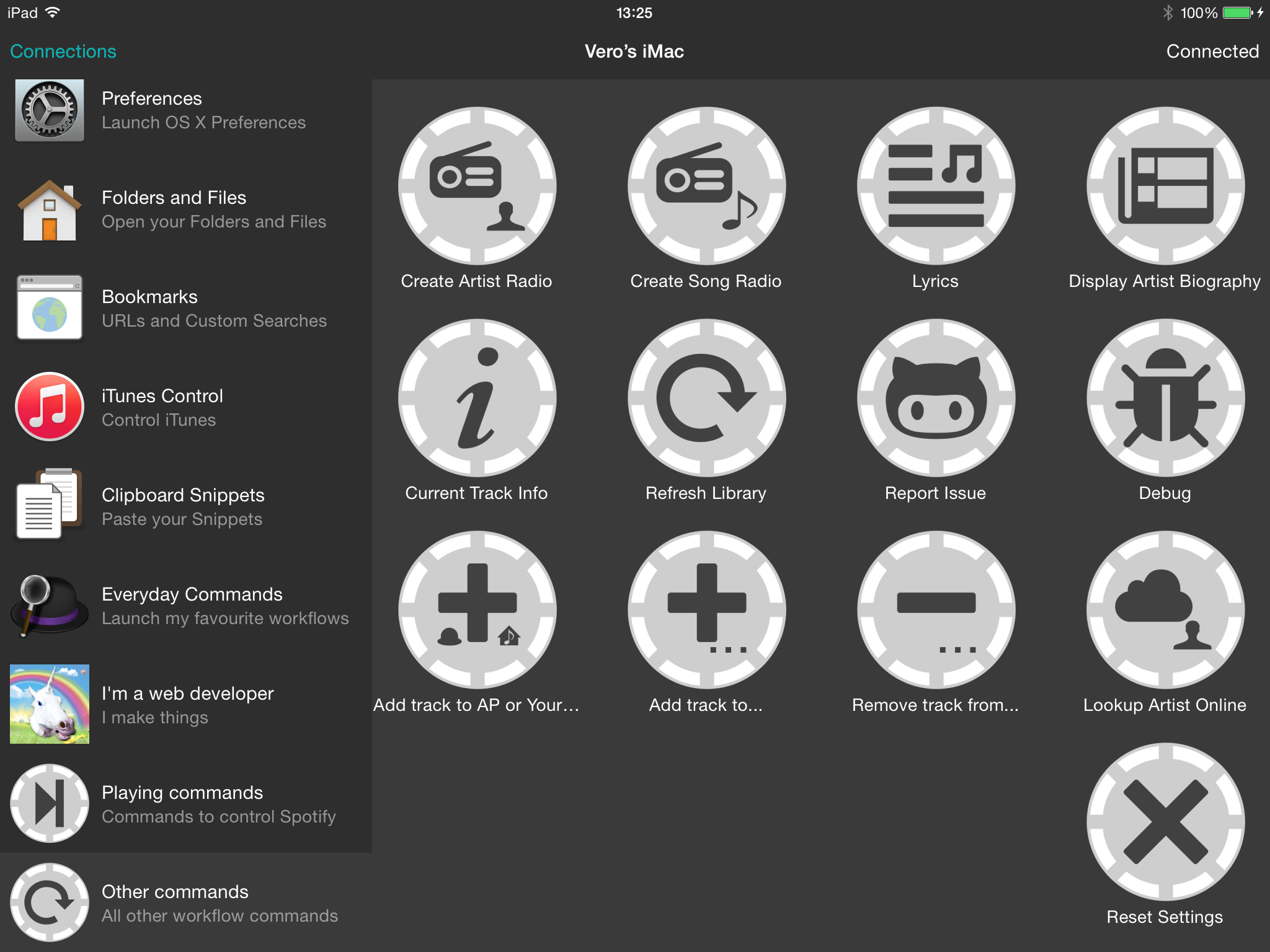
We've also seen screenshots of a Beats music workflow in the wild, so essentially, if your favourite music player supports AppleScript, it may be possible to create a control panel like this for it.
For the busy people!
Whether you're a writer, project manager or anyone else who works with a lot of information, there are no doubt repetitive, uninspiring tasks you waste time on every day. Alfred 2 for Mac takes you a long way to improving your productivity with fast file search, clipboard history and an unbelievably broad range of workflows created by our community, but Remote can help you even further.
As well as modifying the Applications page to contain your most used ones, create a page of clipboard snippets to avoid re-typing commonly used bits of text like your office address. Build a page of links to your blog administration page, your site stats, your webmail and so on, to save from having to remember the URLs.
Numerous workflows are also beautifully useful for writers, project managers and data wranglers; We'll be featuring some great Remote-friendly workflows soon.
Power-up with Workflows
In the next post, I'll take a look at how you can launch multiple actions with a single tap. This allows you to customise your actions further, making Remote fit your unique lifestyle even more.
In the meantime, we'd love to see how you use Remote. Share photos of your Remote and your desk with us on Twitter (@alfredapp) and we'll do a round-up of the best photos in the next few days!
Today, we're thrilled to announce Alfred Remote for iOS is now available to buy on the iTunes App Store. We've been giving you teasers for a few months, but it's now well and truly here - and it's great fun to use!
What is Alfred Remote?
Alfred Remote is our first iOS application and a much-anticipated counterpart to Alfred on Mac.
Remote is your personal command centre for Alfred 2 for Mac. Your iPhone or iPad now becomes a perfect day-long companion to your Mac, providing you with handy icons on iOS to control many Alfred 2 actions on your Mac.
Replace your hard-to-remember hotkeys and keywords, launch apps, files and websites, control your music, keep useful text snippets at hand and boost your productivity by connecting Remote to your favourite Alfred 2 workflows.
How can I use Remote?
Alfred Remote is a counterpart app for Alfred 2 on Mac, allowing you to control your Mac via pages of useful icons on your iOS device. Alfred 2.6 needs to be running on your Mac, and you'll need to pair your iPhone or iPad as a Remote via Wi-Fi.
Here's a look at some of the Remote actions you can launch from your iOS device.
Launch Applications, Files and Folders
Create pages filled with apps, files, folders, browser bookmarks or System preferences you need most often and create a handy control centre to keep at your fingertips.
Use System Commands
Stepped away from your Mac and forgot to lock your screen? No problem, do it from Remote.
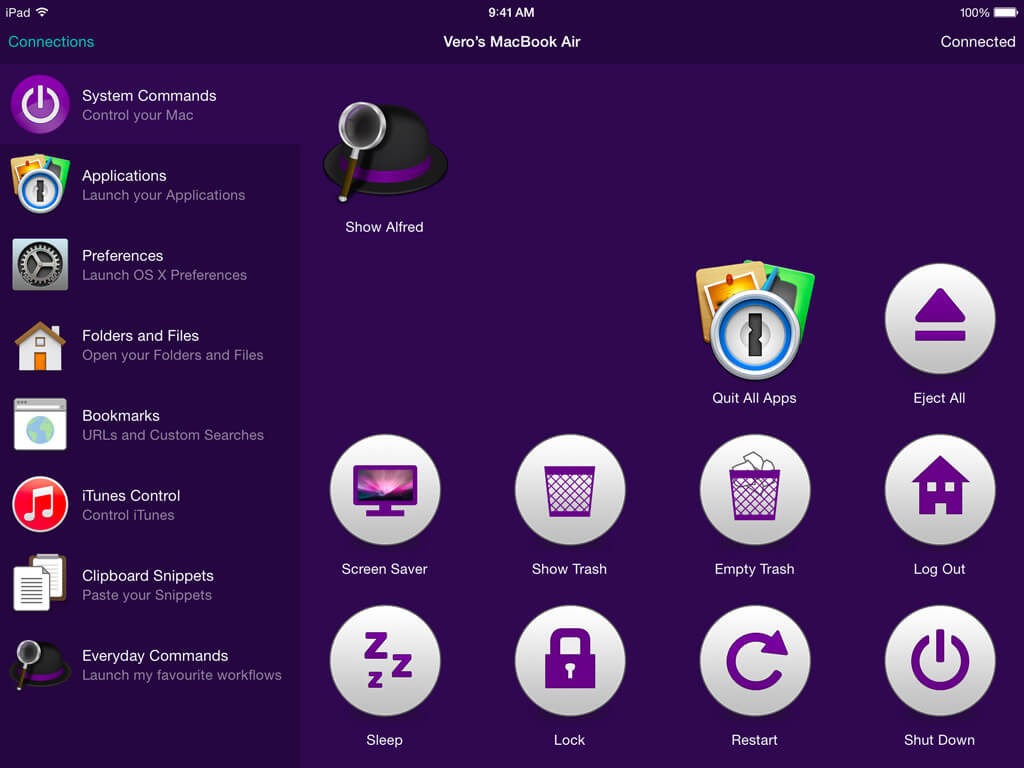
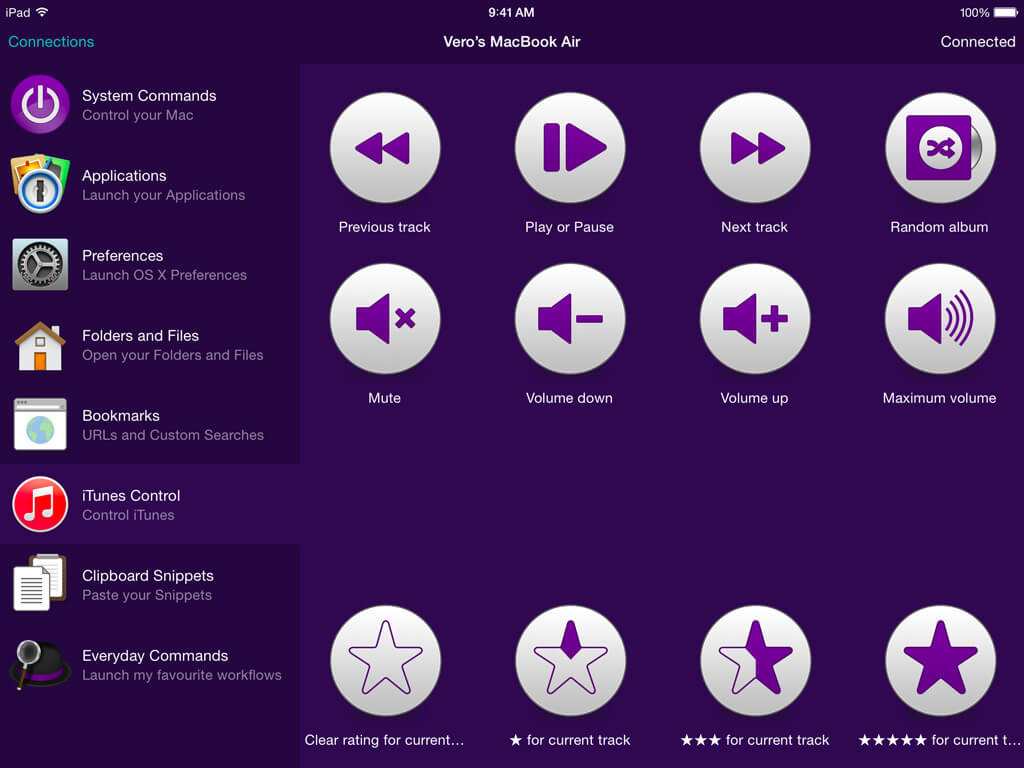
Control iTunes on your Mac
With the Powerpack activated on your Mac, control iTunes. Start a random album to get your day going, and rate those great tracks you'd forgotten about!
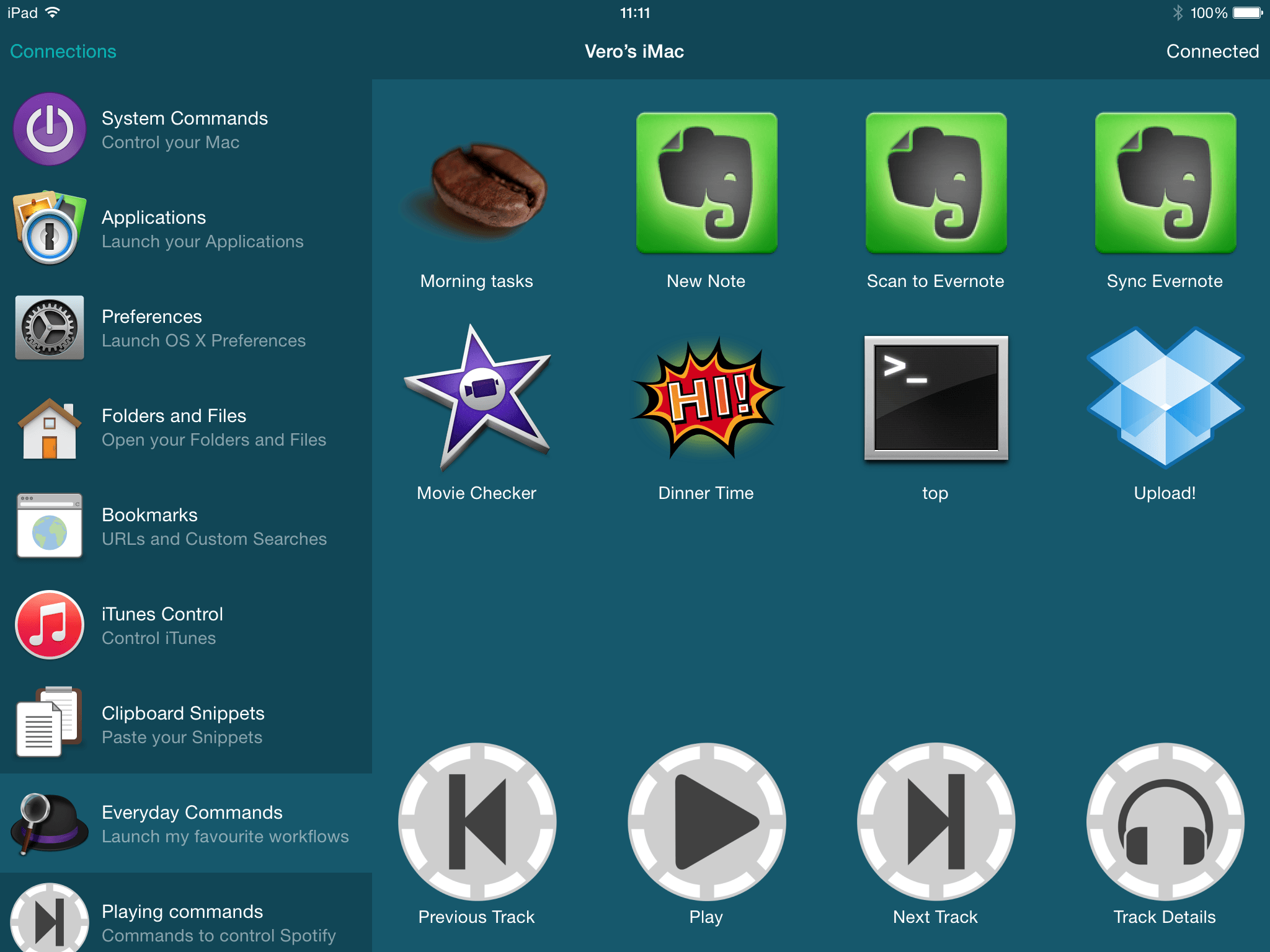
Connect Remote to your workflows
Now this is where things get really fun! Add a "Remote Trigger" to a workflow to allow you to launch it from your Remote. A single tap can launch multiple things; For example the "Morning tasks" action launches all of my essential websites and apps to start the day at once.
Workflow creators can also bundle actions or whole pages of Remote actions with their workflows; We'll be featuring Remote-friendly workflows in the next few days. [Powerpack feature]
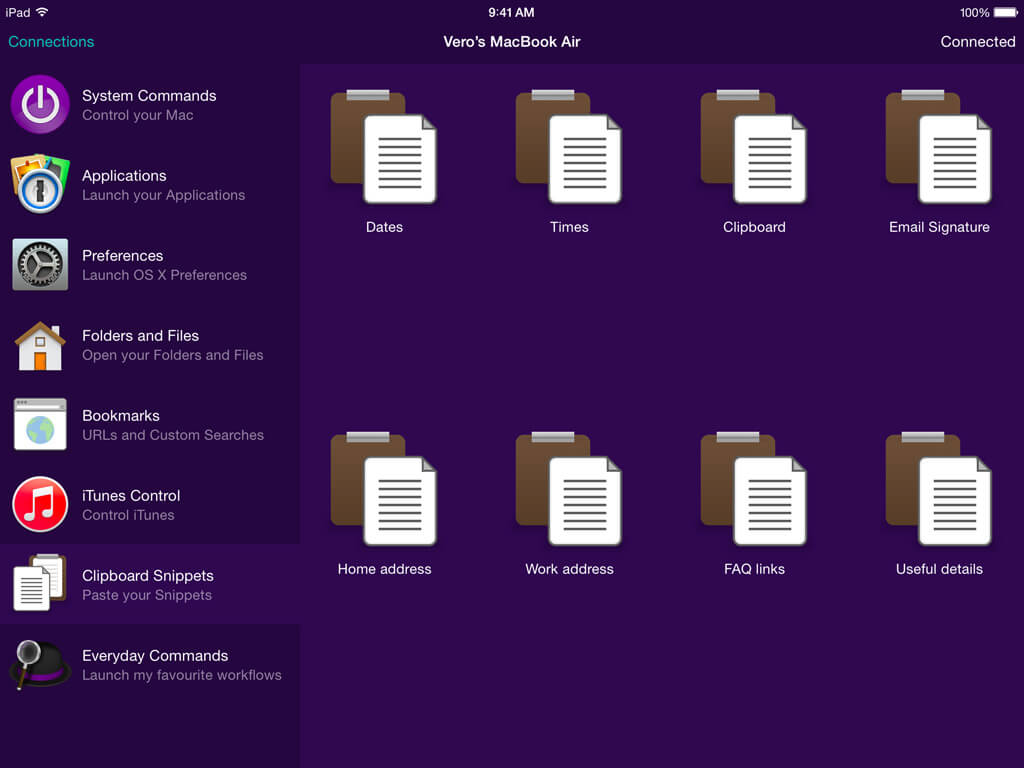
Create Clipboard Snippets
Many Alfred users agree that their clipboard history and snippets have become an essential part of their Mac usage. To make these clipboard snippets even easier to use, create a page of frequently used snippets so that you can simply tap them to paste them to your frontmost application. [Powerpack feature]
Tell me more!
Over the next few days, we'll be featuring brilliant workflows that already take advantage of Remote; They add so much power and flexibility to your Remote, it's worth featuring them in a separate post or two! (There is a sneak peek of a few icons from Vincent de Saboulin's Spotify Mini Player in my workflows screenshot above!)
You'll find more documentation about the Remote actions on the Alfred Support site, and can chat with fellow users on the Alfred forum.
Over the next few days, we'll also be sharing our ideal Mac setup, including the iPad and iPhone stands we use to prop our devices next to our desk everyday.
Don't forget to help us get the word out about Alfred Remote; If you're enjoying using Remote, please leave a positive review in the iTunes App Store. And of course, if you have any issues and can't resolve them with the Support Site, don't hesitate to get in touch so we can help you out. :)
Cheers,
Vero & Andrew
This is a brief post to let you know that Alfred 2.6 is now in pre-release, ahead of this afternoon's general release of Alfred 2.6 and Alfred Remote for iOS.
You can update to the Alfred 2.6 pre-release to help us test it. If you don't yet follow pre-releases, you can do so by launching Alfred's Update preferences, choosing "Pre-releases" from the dropdown menu at the bottom of the preferences.
As Remote is not yet available in the iTunes App Store, the link to the App Store in Alfred's Remote preferences won't work yet. However, you'll be able to start creating pages for your Remote and setting up your workflows to include Remote triggers.
Stay tuned for more updates as soon as Alfred Remote for iOS is available later today :)
Update: You can now find Alfred Remote on the iTunes App Store and grab Alfred 2.6 in Alfred's Update tab on your Mac.