Since Apple first announced macOS 10.15 Catalina this summer, we've been preparing Alfred for support with releases following changes in the beta.
On 7th October, Apple officially released Catalina to the general public, and we followed shortly thereafter with updated to both Alfred 4 and Alfred 3.
We recommend updating to Alfred 4.0.5 if you're using Alfred 4 to get the best Catalina support. If you're still using Alfred 3, be sure to update to 3.8.4.
Generally, macOS Catalina has been a fairly smooth release for Alfred. In this post, we're covering a few pointers for features where changes to macOS mean that you may need to make some little tweaks to your workflows or preferences.
Grant Alfred the Necessary Permissions
Ensure that you've granted Alfred sufficient permissions by following the "Request Permissions..." button in the General tab.
This includes Accessibility permissions (required for Snippets, Clipboard, workflows and more), as well as Full Disk Access to find files and browser bookmarks. This is also where you can access permissions if you previously denied Alfred access to your contacts or automation (which macOS will request automatically if and when it is required).
Apps Have Moved to a New Location
Apple have moved apps from /Applications/ to /System/Volumes/Data/Applications/ in macOS Catalina. As a result, you may see duplicated apps in Alfred when you first launch it. To resolve this, update to 4.0.5+ or type "reload" in Alfred to clear the old cached location.
If you use workflows or Remote actions which launch apps and these don't appear to launch anything any longer, check the location of the app you're launching. You may need to edit the workflow object and go select the app in its new location.
The New Music app and Remote Music
The new Music app replaces iTunes, as Apple has now retired the latter. If you're a keen Music user with remotely stored music (e.g. albums you've purchased on iTunes/Music that you stream instead of download), we recommend updating to the Alfred 4.0.6 pre-release.
To update to an Alfred pre-release, go to the Update tab, choose "pre-releases" from the dropdown menu, and update. You can then revert to general updates if you don't want to receive the more frequent pre-releases in the future.
As Apple has retired iTunes in Catalina, the Mini Player is no longer available in Alfred 3 if you upgrade to Catalina.
The Best Community We Could Wish For!
Finally, we want to say thank you to everyone who's shared with us how they're using Alfred 4 since its release. It's been a thrill to see how you've integrated Alfred into your day to boost your own productivity.
There have been loads of improvements and additions to Alfred 4 so far (Take a look at the change log for the full details), and we have great plans for the future of Alfred 4. :)
 It's here! It's really here!
After months of intense development and testing, we're delighted to say that Alfred 4 is here.
Our wonderful beta testers have put Alfred 4 through its paces over the past few months, and we have a solid release available for you even before our original target of June!
Take a look at what's new in Alfred 4 for an overview of the awesome features and improvements in Alfred 4, but if you'd like to jump in and get started, download Alfred 4 from our website.
Be sure to grab a new Powerpack license or upgrade your existing license to make the most of the Powerpack features!
We've also posted a quick Alfred 4 Getting Started guide, with more details on how to upgrade and activate your Powerpack.
Over the coming weeks, we'll publish guides and tutorials to making the most of the new features. We already can't live without Alfred 4, and can't wait to see how you'll boost your productivity with these new features too! :)
Alfred 4 is now available, and I'm sure you can't wait to get up and running! Here's a quick guide to getting started with this new version.
Curious about the new features and improvements? You'll find them on the What's New in Alfred 4 page, so if you'd like to see what shiny new features we've added, go take a look!
Where can I download Alfred 4?
Grab the free version of Alfred 4 from the Alfred homepage and install it to get started.
Alfred will walk you through a few optional steps to activate your Powerpack, migrate your existing preferences and grant a few permissions.
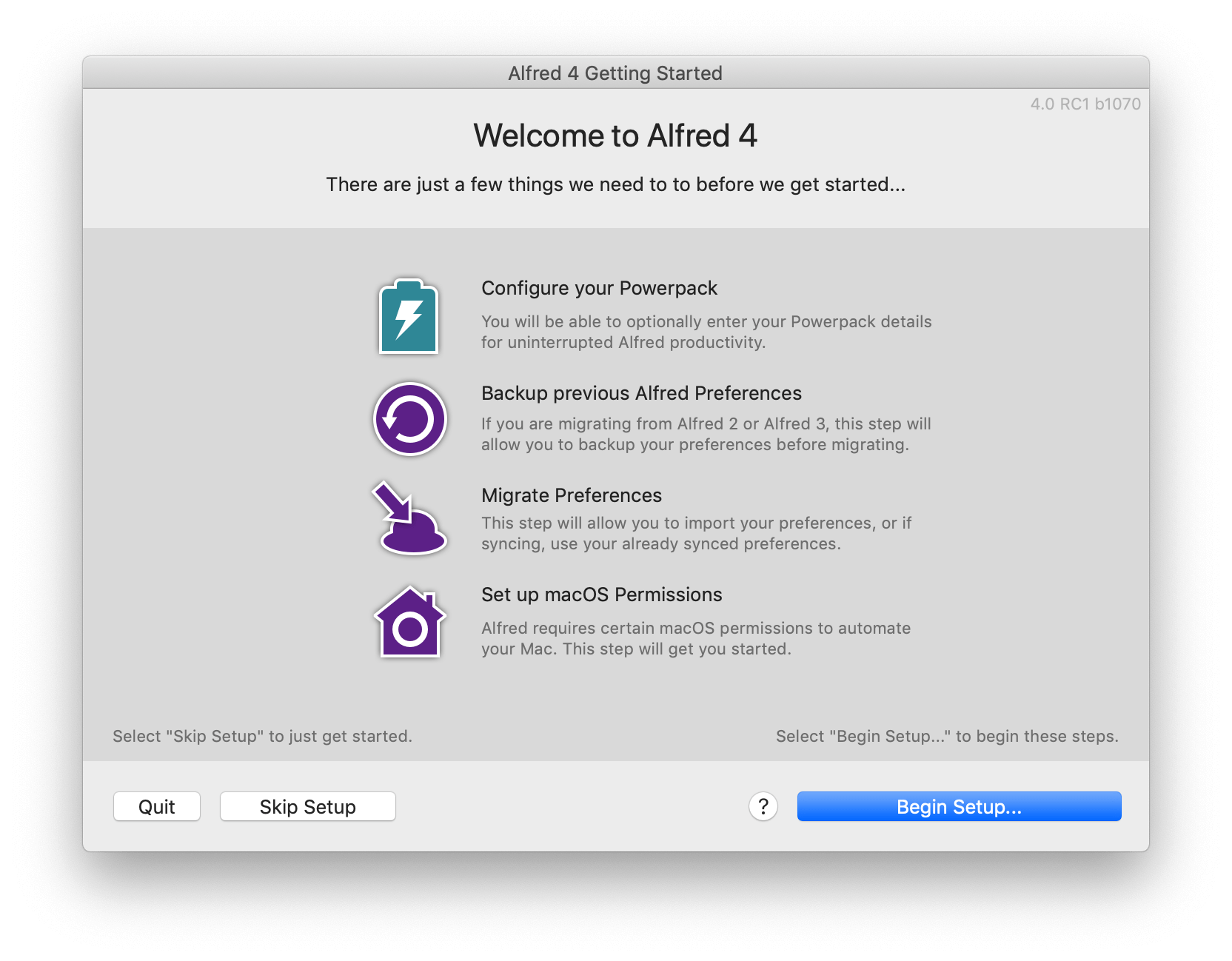
As with all past versions of Alfred, you can use the core features for free, giving you great ways to search your Mac and the web. Of course, Alfred is far more fun once you boost your productivity with the Powerpack features!
How do I activate my Powerpack license?
If you'd like to use the Powerpack features and don't yet have a license, buying a Powerpack license will give you access to numerous great features like workflows, clipboard history, snippets, custom theming, file navigation and more.
If you have a Powerpack license purchased in 2019 or you're a Mega Supporter, you get a free upgrade to Alfred 4. Pop your existing license details in the Upgrade page and you'll be issued your shiny new Alfred 4 license.
If you purchased a Single User or Family license before 2019, you're eligible for a discounted upgrade, so go ahead and upgrade to take advantage of all the wonderful Alfred 4 features.
Once you've got your hands on your Alfred 4 license details, enter them in the Getting Started Assistant when you first launch Alfred 4, or go to the Powerpack tab to add them later.
I need to recover my license, or I'm not sure what license I have.
Please take a good look in your inbox(es) for the subject line "Your Alfred License". If you're unable to locate your details, get in touch from your registered email address, and we'll get back to you as soon as possible. (Please be patient during this busy time, we'll aim to get back to you as soon as we can!)
Let's get started!
Ready to jump in and boost your productivity with the new Alfred 4 features? You can see the full range of features on the What's New in Alfred 4 page.
Prepare your keyboards and stretch those finger muscles, Alfred 4 is coming in June!
 Curious to see what new features and improvements are coming? Take a look at the Alfred 4 announcement, and sign up if you want to be notified by email as soon as version 4 is ready. :D
We've now started beta testing it with a small group of users, so the new features are being put through their paces, so that everything is just perfect when we get to the general release.
If you purchased in 2019 or are a Mega Supporter, you'll receive a free upgrade to Alfred 4. All Powerpack users who purchased before 2019 will be offered a discounted upgrade to Alfred 4, so that everyone can take advantage of the new features.
If you don't yet have a Powerpack license, purchasing a license today gives you an Alfred 3 license immediately, and a free upgrade to Alfred 4 when it's released!
Today, we celebrate Alfred's birthday. It's been 9 years since we released the very first version of Alfred into the wild, and received a warm, kind and completely unexpected response!
The community has grown to millions of users since 2010, and we want to highlight a few community members who have truly made an impression on us, and on fellow Alfred users.
Vitor Galvão has been a community member since 2013, and has since published over 50 workflows - that's excluding all of the smaller ones created on-the-fly for fellow forum users, or the ones for personal use! Most of Vitor's workflows can be found on the forum.
Dean Jackson is pretty much part of the furniture, having used Alfred since the start. A prolific forum contributor, Dean has created some fantastic, advanced workflows like Searchio!, which auto-suggests search results from multiple search engines and languages.
Vincent de Saboulin joined the community in 2012. It's truly humbling to see the extent to which he went to create a comprehensive website to accompany his Spotify Mini Player workflow, which allows you to control Spotify from Alfred.
Other notable members of our community and forum include folks like dfay, Carlos-Sz, raguay, and countless others who have generously shared their time and creativity to help others. Whether you've spent a few minutes helping a colleague get started with searching their Mac, pointed a friend to the Clipboard History feature or written a blog post to share your most used workflows, thank you. We tip our bowler hat to you, the folks who make the Alfred community so much fun to be a part of!
Be sure to stick around, as we have exciting things on the roadmap for Alfred, and we can't wait to tell you more about it later this year.
Cheers,
Vero & Andrew